How to Schedule TikTok Videos: TikTok's Scheduler vs. Repostly
Yes, you can schedule TikTok videos. How TikTok's desktop scheduler works, its 10-day window, and what Repostly asks before it posts a TikTok for you.
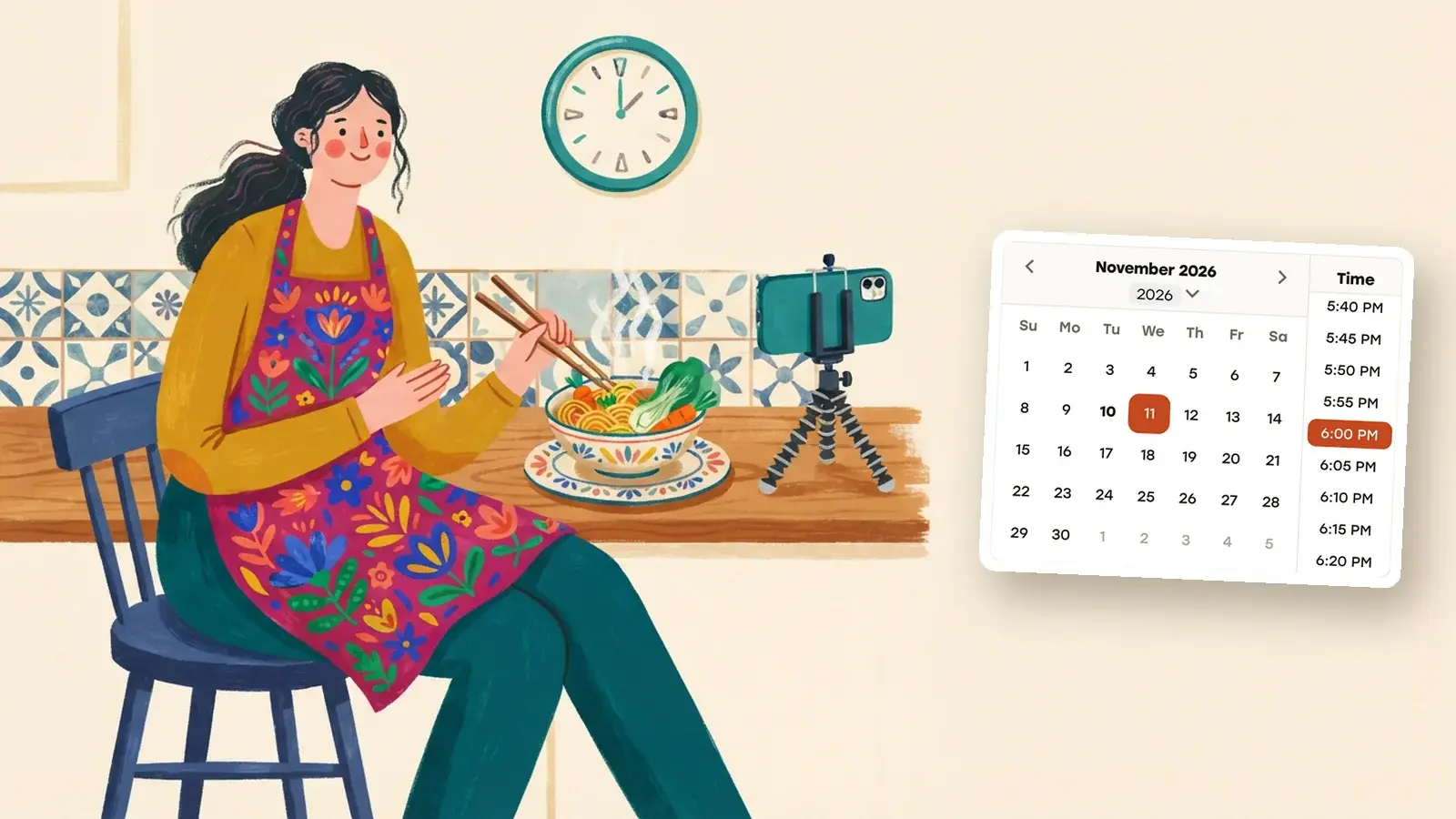
Yes, you can schedule TikTok videos, but only from a computer. TikTok’s own scheduler sits on the upload page of tiktok.com in a desktop browser, and it lets you pick a time between 15 minutes and 10 days ahead. Once a video is scheduled you can delete it, but you can’t edit it.
If ten days is too short, or the same video also goes to Instagram, YouTube or Facebook, a scheduler that posts through TikTok’s official API covers that. Repostly is one: a single upload goes to TikTok, Instagram, YouTube, Facebook Pages and Threads, with no ten-day cap, and the TikTok-specific choices for each post sit in one screen. Each of those choices has a reason behind it, explained below.
How to schedule a video in TikTok
These steps follow TikTok’s Schedule video help page (checked November 2026):
- Sign in on tiktok.com in a desktop browser and click the Upload icon.
- Upload your video, then add the caption and any other settings.
- Turn on the schedule toggle and choose a date and time. The time zone is taken from your computer.
- Click Schedule.
What the help page adds, all checked November 2026:
- The window is 15 minutes to 10 days. Anything further out has to wait, or go through another tool.
- No edits after scheduling. Scheduled posts show up on your profile, where you can delete them. To fix a typo in the caption, you delete the post and schedule it again.
- Desktop only. The feature isn’t available on TikTok’s mobile website, and the help page doesn’t describe scheduling in the phone app.
- You get a notification in the app when the scheduled video goes live.
The page also lists account requirements. If the schedule toggle doesn’t appear on your upload page, your account isn’t eligible yet.
When TikTok’s own scheduler is enough
For one video, a few days ahead, on TikTok only, use it. It’s free and it’s where you already upload.
It gets awkward once you batch a week or two of videos, because the ten-day limit means coming back to schedule the rest. And if the same clip also goes to Reels and Shorts, you’re uploading it three times in three apps. For the bigger picture across platforms, see how to schedule social media posts.
How to schedule TikTok videos with Repostly
Repostly publishes through TikTok’s Content Posting API, so the video is posted to your account directly, not sent to you as a draft. The steps:
- Connect TikTok. Under Accounts, add your TikTok account and allow Repostly to post to it.
- Start a post. Click New post, choose Video, and upload the file. For TikTok it has to be an MP4 or MOV.
- Write the caption and tick your TikTok account under Destinations, plus any other accounts that should get the same video.
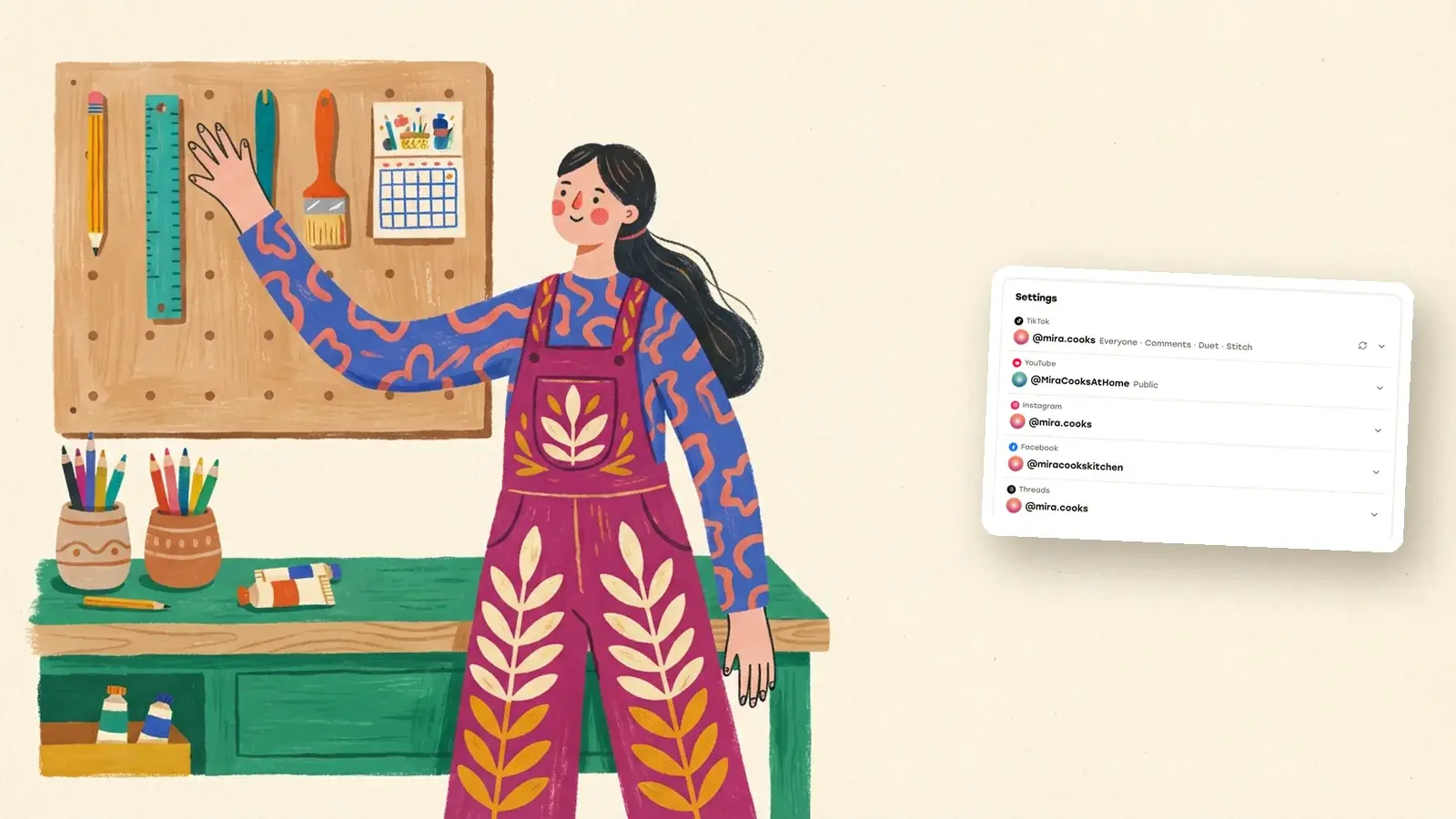
- Open the TikTok row in the Settings card. Repostly loads your account’s current options from TikTok when the row appears; the refresh icon loads them again if you’ve just changed something in the app.
- Pick the time in the When card. The time zone starts on your browser’s.
- Click Schedule Post.
If anything in the TikTok row doesn’t fit, the problem is listed above the button and the button stays disabled until it’s fixed.
What the TikTok settings ask, and why
TikTok doesn’t let outside apps post however they like. Its content sharing guidelines for the Content Posting API (checked November 2026) tell apps to load the creator’s current account settings before posting, let the person choose who can see the video, offer a commercial content disclosure, and show a consent statement before publishing. Repostly’s TikTok settings row covers the same kinds of choices.
Audience
The Audience menu lists only the options TikTok returns for your account: some mix of Everyone, Friends (mutual followers), Followers and Only me. TikTok’s Direct Post API reference says the privacy level sent with a post must match one of those account options (checked November 2026). If a saved choice is no longer available for your account, the field goes blank and you have to pick again.
Comments, Duet and Stitch
Three switches decide whether people can comment on the video, Duet it or Stitch it. If one of them is turned off in your TikTok privacy settings, Repostly greys it out with the note Off in TikTok, because a post can’t switch back on what the account has turned off. These apply to this video only, so a post you’d rather keep quiet can have comments off while the rest of your videos keep them. Check the audience and these three switches on every TikTok post before you schedule it.
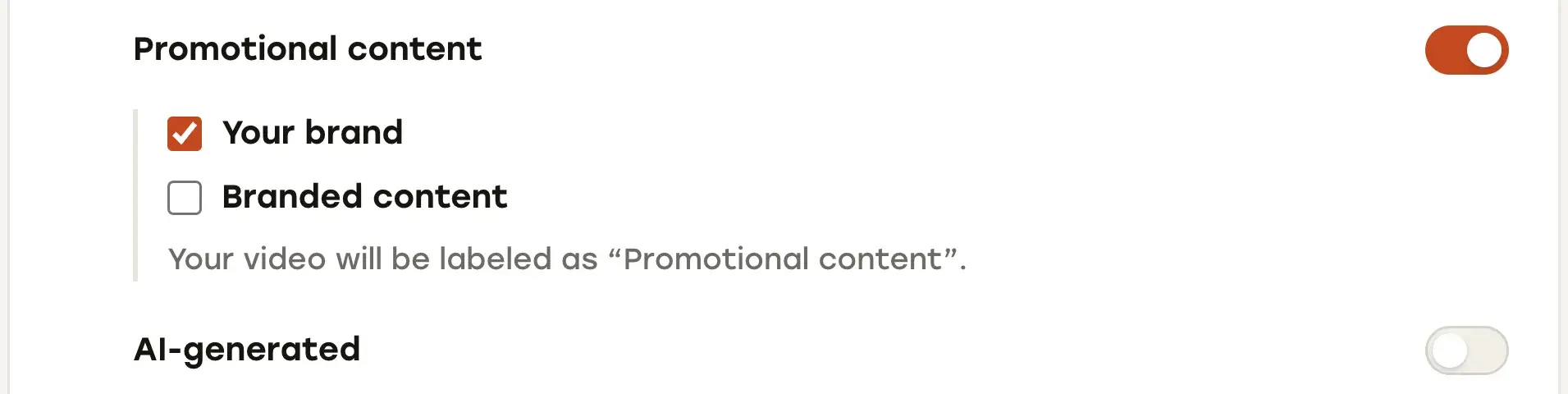
Promotional content
Turn on Promotional content if the video promotes something. You then say what:
- Your brand for yourself or your own business. TikTok labels the video “Promotional content”.
- Branded content for another brand that paid you or gave you something. The label is “Paid partnership”, also when both boxes are ticked.
With the switch on, you have to tick at least one box before you can schedule. Branded content also can’t go to a private audience: Repostly allows it only with Everyone or Friends.
This matters beyond the API. TikTok’s help page on promoting a brand, product or service says the disclosure is required for this kind of content, that undisclosed posts may be removed or restricted, and that the label can’t be changed once the post is published (checked November 2026). Get it right before you schedule.
AI-generated
The AI-generated switch adds TikTok’s AI-generated label to the video. TikTok asks creators to label content that is fully generated or heavily edited by AI, and requires it for realistic images, audio and video (About AI-generated content, checked November 2026). If your video doesn’t use AI that way, leave the switch off.
Length and caption
Repostly also checks the video against the maximum length TikTok reports for your account, and keeps the caption within 2,200 characters, the limit in TikTok’s API reference (checked November 2026). Too long a video or caption shows up in the list above the button.
The consent line and TikTok’s music rules
When TikTok is one of the destinations, a line under Schedule Post says that by scheduling you confirm you have the rights to the content and agree to TikTok’s Music Usage Confirmation. If you marked a video as branded content, TikTok’s Branded Content Policy is added to the same line.
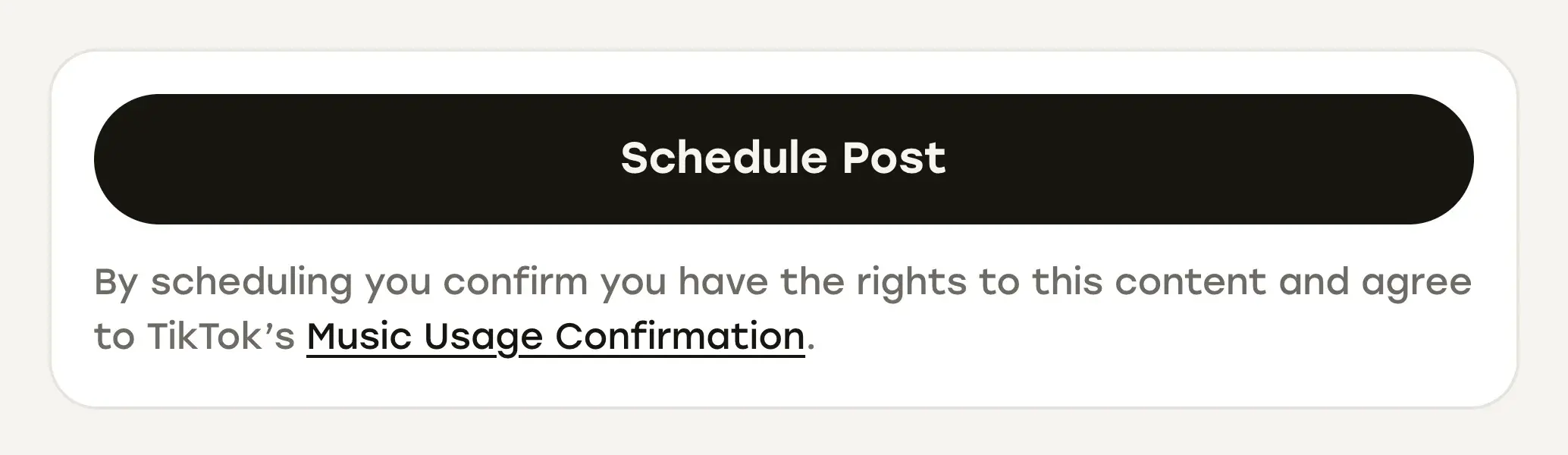
The Music Usage Confirmation is short (checked November 2026). You confirm that the video has no copyrighted music in it, or that you’ve licensed and paid for the music you use. If you can’t confirm either, TikTok asks you not to accept, and it warns that posts may be taken down otherwise.
In practice, the file you upload is what goes out, so finish text, effects and audio in your editor first. Repostly doesn’t add TikTok sounds to a video, so a track you’d normally pick in the TikTok app has to be either in the file with the rights to use it, or left out. Before you click the button, check that your audio meets one of those two conditions.
Repostly records that confirmation with the post when you click the button. When you open a scheduled post again and save changes, the line changes to “By updating” and you confirm again.
What happens at the scheduled time
Repostly doesn’t hand the video to TikTok in advance. At the time you set, it loads your account settings from TikTok again and checks the post against them. If something no longer fits, say you switched off Duet in the app last week or your account’s maximum video length changed, the TikTok destination fails instead of posting with settings you didn’t choose. The post’s detail page shows each destination separately, so you can see what went out and what didn’t.
If everything checks out, the video goes to TikTok. As TikTok’s guidelines note, processing can take a few minutes before the post shows on your profile.
Two things set this apart from TikTok’s own scheduler. You can still change the caption, the settings or the time while the post waits, as long as none of its destinations has gone out yet. And there’s no ten-day limit: Repostly doesn’t cap how far ahead you schedule, and a post goes out as long as your TikTok account is still connected and your plan is active when it’s due. There’s a safety net too. If publishing was paused and a post is more than five hours late when it resumes, it waits under Posts that missed their time for your decision instead of going out hours late. Paused posts still waiting 30 days after their time are marked failed.
Photo posts
TikTok photo posts work too. Choose Image or Image carousel as the post type, and the TikTok row adds a title of up to 90 characters and an Add recommended music switch, which asks TikTok to add music. Duet and Stitch don’t apply to photo posts, so only the comments switch is left. The consent line works the same way.
Is Repostly right for you?
Repostly is built for people who post the same short videos to TikTok and other platforms every week. One upload goes to TikTok, Instagram, YouTube, Facebook Pages and Threads, with several accounts per platform, and each destination gets its own settings in the same screen: TikTok’s audience and disclosure options, a YouTube title, Reels or a regular video on Facebook, and a separate caption where you want one. Everything scheduled and posted sits in one calendar, and you connect each platform through its official sign-in, so Repostly never sees your passwords.
If that sounds like your week, try Repostly free for 7 days and schedule your next batch of TikToks, Reels and Shorts from one screen. Plans start at $19 a month for 5 accounts, and you can ask for a refund within 14 days of your first payment.
Frequently asked questions
Can you schedule TikTok videos?
Yes. TikTok has a scheduler on its website: upload a video on tiktok.com in a desktop browser, turn on the schedule option and pick a time between 15 minutes and 10 days ahead. It isn't available on TikTok's mobile website, and a scheduled video can be deleted but not edited. For longer lead times, or to post the same video to other platforms, you can use a scheduler that publishes through TikTok's official API, such as Repostly.
How do I schedule posts on TikTok?
Sign in on tiktok.com in a desktop browser and click Upload. Add your video and caption, turn on the schedule option, then choose the date and time. The time zone follows your computer. Click Schedule. The post appears on your profile as scheduled, and TikTok sends a notification when it goes live. If you don't see the schedule option, your account isn't eligible for it yet.
Keep reading
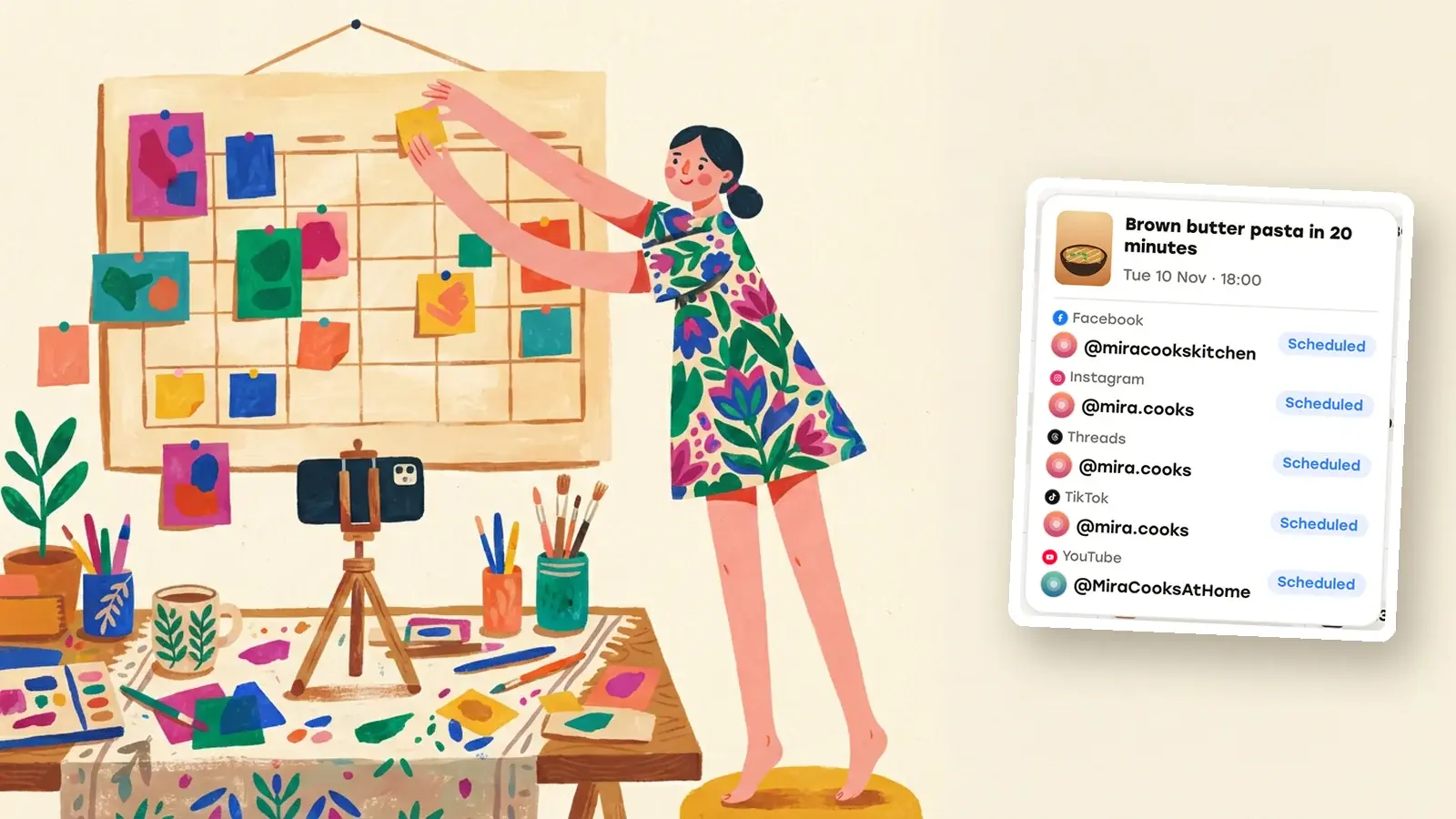
How to Schedule Social Media Posts: Native Tools vs. One Scheduler
Where TikTok, Instagram, Facebook, YouTube and Threads let you schedule posts, how far ahead each allows, and when one scheduler for all of them is worth it.
The Best Free Social Media Schedulers and What Their Free Plans Allow
Which schedulers have a real free plan in November 2026, what each one caps, which are only trials, and when native tools or a paid plan make more sense.
The Best Social Media Scheduling Tools, Compared by Use Case
Buffer, Later, Metricool, Hootsuite, Repurpose.io, Post Bridge and Repostly side by side: platforms, free plans, starting prices and who each one suits.
Post once. Show up everywhere.
Start your 7-day free trial and publish your next video to every platform in minutes.Pick a plan and publish your next video to every platform in minutes.
Start your free trialSee plansCancel anytime