How Do You Share YouTube Videos on Facebook? Easy Guide
Wondering how do you share YouTube videos on Facebook? Learn simple steps to boost views and engagement across devices. Click to discover how!
Sharing a YouTube video on Facebook is surprisingly simple. You just grab the video's URL from YouTube, pop it into a new Facebook post, and you're good to go. Facebook automatically generates a neat, clickable preview, so your followers can watch right in their feed. It’s a quick win for getting more eyes on your content.
Why Sharing YouTube Videos on Facebook Works
Let's be honest, getting traction on a new YouTube video can be a slog. Sharing it directly to your Facebook page is a smart way to kickstart its performance and grow your audience at the same time. You’re essentially tapping into two massive, and often different, pools of people with one post.
When you share a new video, you're not just hoping for views. You're generating immediate engagement—likes, comments, shares—which sends a powerful signal to the YouTube algorithm. It tells YouTube, "Hey, people like this," which can help your video get recommended to a wider audience on the platform.
This creates a brilliant feedback loop. You drive traffic from your Facebook fans over to your YouTube channel, which hopefully turns them into subscribers and long-term viewers. Imagine a local bakery sharing a quick "behind-the-scenes" video of their new cake. It's a fantastic way to get their Facebook followers excited and clicking over to YouTube for the full recipe. A band can do the same thing by dropping their new music video link, instantly letting their Facebook fans know it's live.
The key is to see each platform not as a silo, but as part of a larger content distribution network. Your Facebook audience might prefer short updates, while your YouTube subscribers are there for in-depth content. Sharing bridges that gap.
The Power of Two Audiences
When you combine these platforms, the potential reach is enormous. In early 2025, YouTube had around 65.5 million users in Germany, which is about 77.6% of the entire population. Now, think about adding Facebook's audience to that mix, which sat at roughly 43 million users during the same time. You’re creating a powerful distribution channel across two platforms that a massive slice of the population uses daily. You can dig deeper into these kinds of numbers for Germany's digital landscape over on DataReportal.
To really get the most out of this, it helps to explore effective multi-platform content delivery strategies. It's not just about posting the same thing everywhere. Thinking about how to adapt your message for each audience is crucial, and you can learn more about that in our guide on how to repurpose content here: https://repostly.app/blog/how-to-repurpose-content-68c91d96650d8992d6cf721d. Ultimately, this approach keeps your Facebook feed fresh and gives your followers more of what they love.
Sharing YouTube Videos from Your Desktop
When you're at your computer, sharing a YouTube video to Facebook is a breeze and gives you the most control over how everything looks. The quickest way is often the simplest: just copy the URL straight from your browser's address bar while you have the video open.
Head over to Facebook and start a new post. As soon as you paste the link, you'll see Facebook work its magic. It automatically fetches the video's thumbnail, title, and the first couple of lines of the description, creating a nice, clickable preview for your feed. This preview is your first, and maybe only, chance to grab someone's attention.
Crafting the Perfect Post
Just dropping a link and hoping for the best is a missed opportunity. The text you write around that link is your sales pitch—it's what convinces people to stop scrolling and click play. You want to add a bit of context or create some intrigue without spoiling the video.
Here are a couple of approaches I've found work well:
- Ask a Question: Turn your caption into a question that your video answers. Something like, "Ever wondered how to make the perfect sourdough? We break it all down in our latest video!"
- Share a Key Takeaway: Pull out a juicy quote or a surprising statistic from the content. For instance, "I was shocked to learn this one trick that cuts my editing time in half. Find out what it is at the 2:15 mark."
Remember, the caption sells the click. A generic "Check out my new video" is easy to ignore. A specific, intriguing caption stops the scroll and gets people engaged.
Pay close attention to the thumbnail Facebook pulls in; it’s the visual centrepiece of your post. If it looks blurry or just doesn't pop, try this instead: go back to YouTube and use the dedicated 'Share' button found right below the video player. Copying that link can sometimes encourage Facebook to grab a better quality image.
And if you find yourself sharing videos regularly, it might be worth looking into how to automate social media posts. This can save a ton of time and ensures your content is consistently getting in front of your audience, even when you're swamped.
3 Easy Ways to Share a YouTube Video on Facebook
Sharing a YouTube video on Facebook is a fantastic way to get more eyes on your content. With 95.8% of Facebook users accessing the platform on their mobile phones, making it easy for them to watch and engage is key.
Whether you're at your desk or on the move, here are three simple methods to get your YouTube videos in front of your Facebook audience.
1. The Classic Desktop Share
If you're already working on your computer, sharing directly from YouTube is the most straightforward route. It only takes a few clicks.
First, head over to the YouTube video you want to share. Right below the video player, you’ll see a row of options. Look for the “Share” button and click it.
A pop-up window will appear, giving you a bunch of different platforms to share to. Simply click the Facebook icon. This action will open a new browser tab with a Facebook post pre-populated with your video link.
Now, this is where you can work your magic. Don't just post the link as-is. Write a compelling caption that gives people a reason to click. Ask a question, pull out an interesting quote from the video, or hint at the value they’ll get from watching.
Once you’ve crafted your caption, you have a few options:
- Share to News Feed or Story: Choose where you want it to appear.
- Share on a friend's profile: Perfect for sending a video directly to someone.
- Share to a group: A great way to get your content in front of a niche community.
- Share on a Page you manage: Essential for business accounts and content creators.
Just choose your destination, hit the “Post to Facebook” button, and you're done. Your video is now live for your audience to see.
2. Sharing on the Go from Your Mobile
Let's be honest, a lot of social media management happens on our phones. Whether you're using an iPhone or an Android, sharing a YouTube video to Facebook while you're out and about is a breeze.
Pull up the YouTube app and find the video you want to post. Just like on the desktop, tap the Share icon that sits right under the video. This brings up a menu with all your sharing options.
Tap the Facebook icon, and your phone will instantly switch over to the Facebook app, opening a new post with the video link already in place. It’s that simple.
Given that a staggering 91% of mobile social media visits in Germany happen on the go, this method is a powerful way to connect with your audience, particularly younger demographics. You can find more insights about social media users in Germany to help fine-tune your approach.
Perfecting Your Post from Your Phone
When someone is scrolling on their phone, you have a split second to grab their attention. Your post needs to be short, sharp, and engaging.
Here are a few tips I've found really work for mobile posts:
- Tag relevant accounts: Use the "@" symbol to tag any collaborators, brands you mentioned, or other pages. They'll get a notification, which can seriously amplify your post's reach.
- Keep it short and sweet: Mobile screens don't have much real estate. A punchy caption that gets straight to the point will always outperform a long block of text.
- Add a clear call-to-action: Tell people what you want them to do. Something as simple as "Watch our new tutorial!" or "What do you think of this?" can make all the difference in driving clicks and comments.
Your goal on mobile is to be a "scroll-stopper." An energetic caption combined with a great thumbnail is the secret sauce for getting people to stop, look, and click.
This quick-and-easy process means you can keep your Facebook page fresh and engaging no matter where you are, even when you're miles away from your desk.
How to Optimize Your Shared Videos for Engagement
Knowing how to post a YouTube video on Facebook is one thing, but getting people to actually stop scrolling and watch it? That’s a completely different game. Just dropping a link and hoping for the best rarely works. To get real traction, you need to be strategic about every part of your post.
One of the biggest factors is timing. You want to share your video right when your audience is most likely to be online. This isn't about some universal "best time to post"; it's about digging into your own audience insights to see when your followers are most active. Catching them at the right moment can make or break your video's reach.
Writing Captions That Spark Curiosity
Your caption is your sales pitch. It’s what convinces someone to give your video their time. Ditch the boring, predictable "Check out my new video" and aim for something that creates genuine curiosity.
Try framing your caption around a compelling question that your video answers. Or, pull out a surprising quote or statistic from the video that makes people need to know more. For instance, instead of just sharing a link to a recipe, you could write, "This one secret ingredient took my pasta sauce from good to unforgettable. Guess what it is before you watch!" It creates an itch that only a click can scratch.
This visual guide breaks down the core steps.
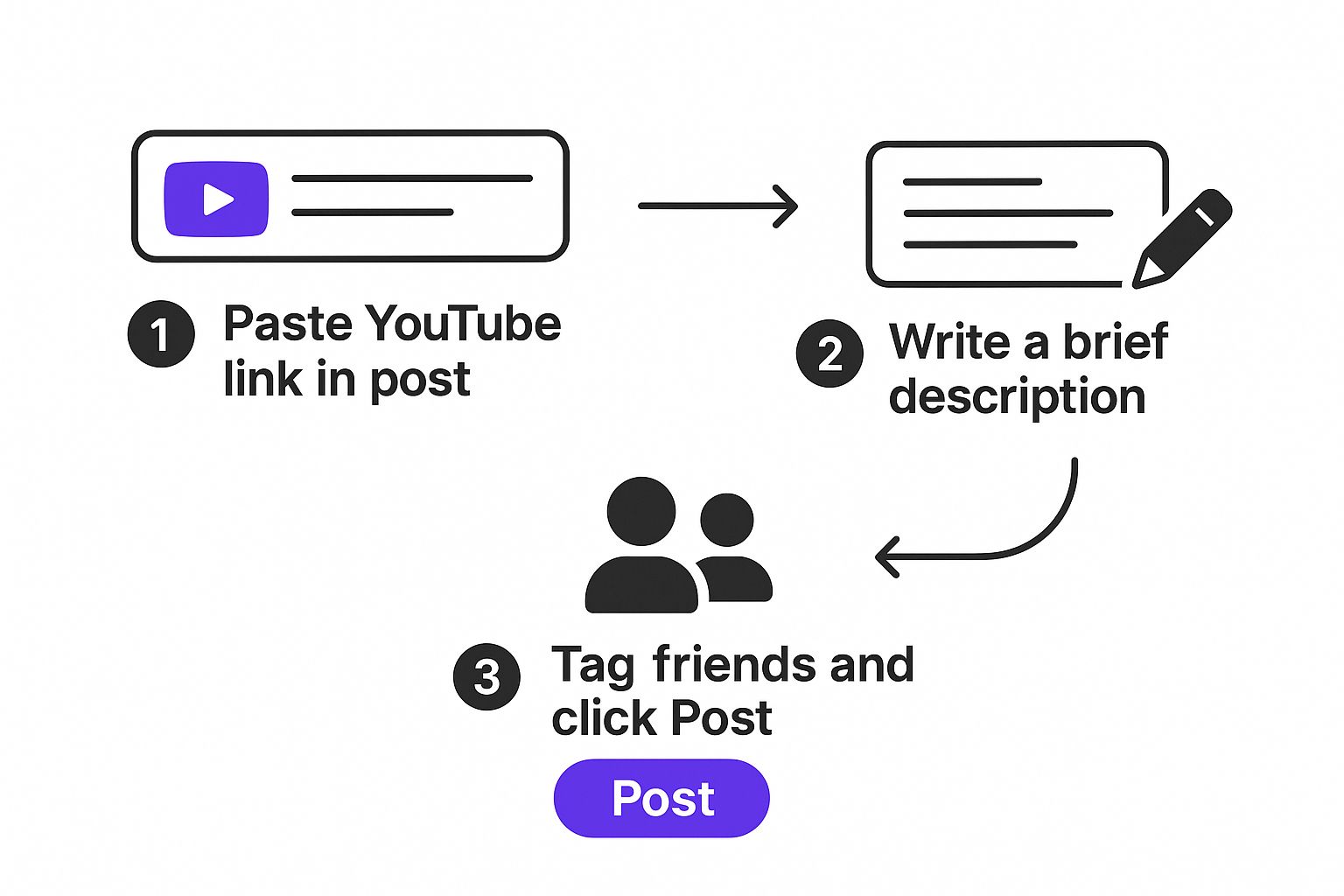
As you can see, the process itself is straightforward. The magic, however, is in how you handle that description to drive clicks and comments.
To Link or Upload Natively? That Is the Question
You've got two main options for sharing video content on Facebook: posting the direct YouTube link or uploading a video file straight to the platform. Neither is universally "better"—they just serve different strategic purposes. Choosing the right one depends entirely on your goal for that specific post.
Here’s a quick breakdown to help you decide which approach makes the most sense for you.
YouTube Link Post vs Native Facebook Video Upload
| Feature | Sharing a YouTube Link | Uploading Natively to Facebook |
|---|---|---|
| Primary Goal | Drive traffic directly to your YouTube channel to increase views, watch time, and subscribers. | Maximise reach and engagement within the Facebook ecosystem. |
| Algorithm Preference | Lower priority. Facebook's algorithm tends to favour content that keeps users on its platform. | High priority. Native videos often get significantly more reach and are favoured in the feed. |
| User Experience | Requires users to click away from Facebook, which can be a point of friction. | Seamless. Videos autoplay in the feed, capturing attention immediately without extra clicks. |
| Best Use Case | Sharing your main, long-form content when channel growth is the number one priority. | Posting short teasers, trailers, or clips to build hype and direct viewers to the full video. |
Ultimately, many creators find a hybrid approach works best. You can use a short, natively uploaded teaser clip on Facebook—say, a punchy 15-30 second highlight—that grabs attention instantly. Then, in the caption, you place a strong call-to-action with the link, telling people to "Watch the full video on YouTube now!"
The most important takeaway? Always use your post's description to start a conversation. Ask a direct question like, "What was your favourite tip from the video?" This encourages comments, which tells the Facebook algorithm your content is valuable and worth showing to more people.
Nailing your posting schedule is a massive piece of the puzzle. For a deeper dive into the data, check out our guide on the best time of day to post on Facebook. It'll give you the insights you need to make sure your video launches with a bang.
Troubleshooting Common YouTube Sharing Issues
So, you’ve tried to share a YouTube video on Facebook, but it’s not quite going to plan. It’s a common frustration—your post looks broken, the thumbnail is missing, or an error message pops up. Don't worry. Most of these glitches are surprisingly easy to fix without needing a degree in computer science.
Getting Your Thumbnail to Show Up Properly
One of the most frequent hiccups is the video thumbnail not appearing, or Facebook showing an old title or description. This almost always happens because Facebook is holding onto an old, cached version of the link's data.
The quickest fix? Use the Facebook Sharing Debugger. Just copy your YouTube URL, paste it into the debugger, and click 'Debug'. This forces Facebook to fetch a fresh version of your link, instantly updating the thumbnail, title, and description to the latest versions. It's a lifesaver.
Tackling Content and Playback Errors
Seeing a "content not available" error can be a real headache. This message usually points to one of a few things. First, pop back over to YouTube and confirm the video isn’t accidentally set to private. It needs to be public for everyone on Facebook to see it.
Also, consider geographic restrictions. If the video's creator has blocked it in certain countries, your followers in those regions won't be able to watch it.
It’s also worth remembering that copyright claims can make a video unavailable without warning. Being familiar with how to avoid copyright infringement is essential for keeping your shared content live and accessible to your audience.
Finally, what if the video plays directly on Facebook instead of linking back to YouTube? This isn't technically an error, but it's not ideal if your goal is to grow your YouTube channel. To encourage people to click through, add a direct call to action in your post. Something like, "Click through to YouTube to join the conversation in the comments!" works wonders to guide viewers to your channel.
Got Questions? We've Got Answers
When you start sharing YouTube videos on Facebook, a few questions always seem to come up. Let's tackle them head-on so you can post with confidence and get the best results.
Does Sharing a YouTube Link Ruin the Video Quality?
This is a big one, but you can relax. Sharing a YouTube link does not lower the video's quality. Facebook is simply embedding the YouTube player, so the video streams directly from YouTube's servers.
The final playback quality your audience sees depends entirely on their own internet connection and the resolution they choose in the YouTube player settings. What you uploaded is what they get.
How Does the Facebook Algorithm Treat YouTube Links?
It's true that Facebook's algorithm tends to favour content that keeps people on their platform, like native video uploads. However, that doesn't mean your YouTube link is doomed. A well-presented post can still fly.
The secret? Engagement. If your post gets a healthy number of likes, comments, and shares, Facebook's algorithm sees it as valuable content and will show it to more people.
Pro Tip: Your caption is everything. Don't just drop a link. Spark a conversation by asking a question directly related to the video. This is the simplest way to encourage comments and give your post a boost.
Is it Better to Post in a Group or on a Page?
Your strategy should change depending on where you're posting.
- Facebook Groups are fantastic for niche content. Since they're built around specific interests, your video is likely to land in front of a highly engaged audience, making it the perfect place to kick off a detailed discussion.
- Facebook Pages are more about broadcasting to a wider, more general audience. Think of it as your brand's public stage.
Can I Schedule These Posts in Advance?
Absolutely! This is a huge time-saver. Using a social media management tool, you can schedule all your YouTube video shares for the week or month ahead.
This means you can plan out your entire content calendar and ensure your videos go live at the perfect times to reach your audience, even if you’re away from your desk.
Ready to take control of your social media schedule and reach a wider audience effortlessly? Repostly lets you automate your content across all major platforms, saving you hours every week. Sign up for Repostly today and see your engagement grow.
Keep reading
10 Fresh Instagram Story Idea Tactics for 2025
Stuck for content? Discover our top Instagram story idea list, with actionable tips to boost engagement and grow your audience in 2025.

A Practical Social Media Planner for German Markets
Build a results-driven social media planner for Germany. This guide offers actionable strategies for content, scheduling, and analysis in the German market.

Crafting Your Social Media Content Plan
Stop guessing and start strategizing. This guide provides an actionable social media content plan to audit, plan, and execute content that gets results.
Post once. Show up everywhere.
Start your 7-day free trial and publish your next video to every platform in minutes.Pick a plan and publish your next video to every platform in minutes.
Start your free trialSee plansCancel anytime