How to Manage Multiple Social Media Accounts Without Losing Track
How TikTok, Instagram, YouTube, Facebook and Threads handle several accounts, how to keep them secure, and when one dashboard beats switching apps.
Every major platform lets you add several accounts to its app and switch between them without logging out: Instagram keeps up to 10 logged in at once, YouTube lets one Google Account manage up to 100 channels, and TikTok, Facebook and Threads have switchers in their apps too. For two or three accounts, that’s usually all you need. Past that point, the switching itself becomes the problem, and one dashboard with every account connected through the platforms’ official sign-in saves more time than any trick inside the apps.
Below: how switching works on each platform, the security habits that matter more with every extra account, and how Repostly puts every account into one composer, one calendar and one Insights view.
Switching accounts inside each platform
All of these come from the platforms’ own help pages, checked November 2026.
| Platform | How you switch | Limit the help page states |
|---|---|---|
| Profile, then tap your username at the top | Up to 10 accounts logged in at once | |
| TikTok | Profile, then tap your nickname | None stated |
| YouTube | Profile picture, then Switch account | Up to 100 channels per Google Account |
| Facebook Pages | Profile picture, then See all profiles | None stated |
| Threads | Profile, Menu, then Switch profiles | None stated |
Instagram. To add an account you already have, go to your profile, tap the menu in the top right, scroll down and tap Add account, then Log into existing account. After that, tapping your username at the top of your profile lists every account on the phone. Instagram’s help page on multiple profiles puts the ceiling at 10 accounts logged in at the same time.
TikTok. On your profile, tap your nickname, then Add account or pick one you’ve added; the same option is in settings (TikTok Support). The part worth planning around is a rule on the same page: each phone number, email address and social media login can only be linked to one TikTok account. Every new TikTok account needs its own email or phone number.
YouTube. One Google Account can manage up to 100 channels. On youtube.com you click your profile picture, choose Switch account and pick the channel (YouTube Help). If more than one person should run a channel, create it with a business or other name: YouTube says that kind of channel can have more than one manager or owner, while a personal channel is one that only you can manage (YouTube Help).
Facebook. You switch into a Page from your personal profile: click your profile picture in the top right, then See all profiles, and pick the Page (Meta Business Help). If you run several Pages plus their Instagram accounts, Meta Business Suite is Meta’s own place to manage Facebook, Messenger and Instagram together. Pages are added to a business portfolio under Settings, then Pages (Meta Business Help).
Threads. In the app, go to your profile, tap the menu in the top right, then Switch profiles and Add profile, and log in with another Instagram account. On threads.com from a computer there’s no switcher: you log out and log in as the other profile (Instagram Help).
Instagram, Facebook and Threads profiles can also sit in the same Meta Account, which lets you share stories, reels and posts across them (Instagram Help). That’s handy for one brand. It’s less useful if the accounts belong to different clients.
Where switching inside the apps stops working
Built-in switching is fine for a personal account and a business account. It gets shaky once the count grows.
You post from the wrong account. The app looks identical whichever account is active, and a client video landing on your personal profile is the typical mistake. The more accounts per app, the easier it gets.
Nothing shows the whole week. TikTok knows about your TikTok accounts, Meta Business Suite knows about Meta, YouTube Studio knows about YouTube. To see whether Thursday is covered everywhere, you open five apps.
Results are scattered too. Comparing how the same video did on two Instagram accounts and a YouTube channel means three dashboards and a spreadsheet.
What fixes all of this is one calendar that holds every account, with the account named on every post. You can build that in a spreadsheet; a social media content calendar walks through the setup. Or you can use a scheduler that connects every account and publishes from the same calendar it plans in.
If the accounts mostly post the same videos, it’s also worth reading how to repurpose one video for each platform before you plan anything per account.
Keep every account secure
Each extra account is one more login someone can steal. These habits come from the platforms’ own security pages (checked November 2026):
- Turn on two-factor authentication everywhere. Instagram calls it the single most effective step to protect your account and turns it on by default for creator accounts (Instagram Help). TikTok bundles it into Security checkup, under Settings and privacy, then Security & permissions, along with passkeys and trusted devices (TikTok Support).
- Use a different password for each account. Instagram recommends a password manager to keep them unique. Repeated passwords are what turn one leak into five lost accounts.
- Secure the email behind each account. Instagram’s point is blunt: anyone who can read your email can probably get into your account.
- Never give a tool your password. Instagram warns that a third-party app you hand your login information to can gain complete access to your account, so only authorize apps you trust. Prefer tools that connect through the platform’s own sign-in, which never asks you to type your password into the tool, and remove the ones you’ve stopped using.
- Give people their own access instead of sharing logins. A Facebook Page can give someone Facebook access with full or partial control, where partial means they manage the Page but not other people’s access (Facebook Help), and YouTube channels have channel permissions with owner and manager roles (YouTube Help).
Keep a simple list too: account, platform, the email and phone number it uses, and who has access. TikTok’s one-email-per-account rule alone makes this worth five minutes.
Managing multiple accounts in Repostly
Repostly is built for posting the same short videos to many accounts on TikTok, Instagram, YouTube, Facebook and Threads. You upload a video once, tick the accounts it goes to, give each destination its own settings in the same screen, and follow everything in one calendar. Here’s how that works with several accounts, as of November 2026.
Connecting accounts
Open Accounts, click Add account and pick the platform. You’re sent to that platform’s own sign-in, and Repostly never sees your password. For a second account on the same platform, click Add account again and sign in as that account. Each account becomes its own card, so two Instagram accounts and two YouTube channels appear as four separate destinations.
Each platform connects a specific kind of account:
- Facebook connects Pages, not personal profiles. After you sign in, you pick the Page from a list, and each Page counts as one account.
- Instagram connects professional accounts (business or creator). Meta’s Instagram API with Instagram Login is built for those accounts, and it doesn’t need a linked Facebook Page.
- YouTube connects one channel per sign-in. If the channel that shows up isn’t the one you meant, YouTube’s help notes that some apps using API sign-in can land on the wrong channel and suggests setting a default channel.
A Repostly account has one login. If colleagues need their own access to a channel or Page, give it to them through the platform roles described in the security section above.
How many accounts each plan includes
Starter is $19 a month for 5 accounts, Pro is $39 for 15, and Expert is $79 for unlimited accounts. Every plan allows several accounts on the same platform, and every connected account counts, including one that’s waiting to be reconnected. Reconnecting an account you already have doesn’t use another slot. Deleting an account from its card’s menu frees a slot, but it also removes that account’s posts and stats from Repostly (not from the platform), so do it only for accounts you’re done with. Yearly billing gives you two months free, every plan has a 7-day free trial, and you can ask for a refund within 14 days of your first payment. The current plans are on our pricing section.
Picking accounts per post
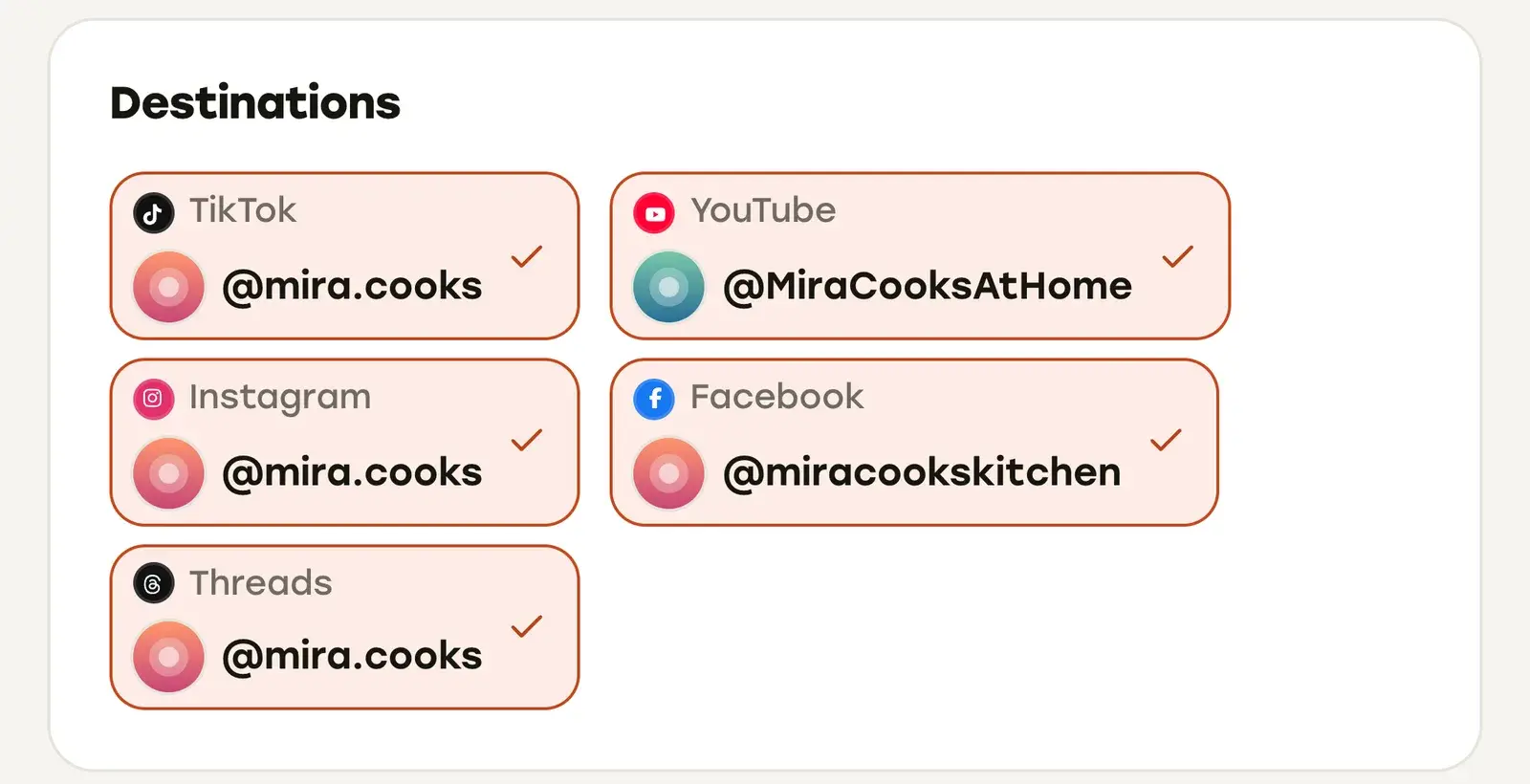
In the composer, the Destinations card shows every connected account grouped by platform. You tick the accounts this post goes to, so a cooking video can go to three accounts and skip the fourth. Once you have more than 12 accounts, the picker adds a search box.
One calendar, and one per account
The Calendar shows scheduled and published posts from every account in one month or week view. When you want a single account on its own, open it from Accounts: each account page has its own Posted, Scheduled and Calendar views.
Results per account
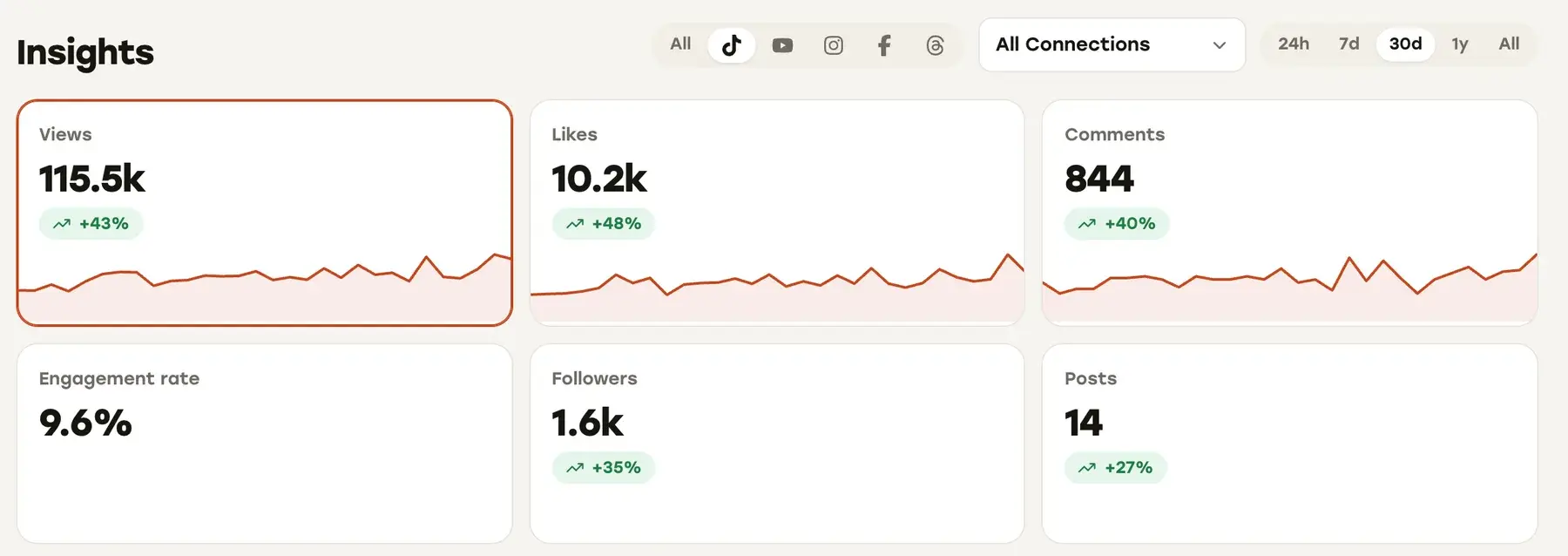
Insights has a platform filter and an account filter next to it. Leave it on All Connections for the total, or pick one account to see only its numbers.
When an account needs attention
Platforms sometimes revoke or expire access. When that happens, the account’s card says Reconnect required and shows a Reconnect button. Until you reconnect, that account’s scheduled posts fail when they’re due, so check the card when you see the label.
The other case is the plan limit. If you move to a plan with fewer accounts than you have connected, the extra accounts are paused. Their scheduled posts wait and go out once the account is back within your limit. If a post would go out more than five hours late, it waits on Posts that missed their time for your decision instead, and anything still waiting 30 days after its time expires. In the composer, both kinds of account are shown muted and can’t be ticked, with a link to Accounts, so you can’t schedule to them by accident.
Is Repostly right for you?
If you run more than a couple of accounts across TikTok, Instagram, YouTube, Facebook Pages and Threads, the switching problem from earlier goes away: every account is a checkbox in one composer, every post names its accounts in one calendar, and each post’s detail page shows every destination’s status and its own views, likes and comments. If you work with scripts or an AI assistant, Repostly also has a REST API and an MCP server.
For publishing details such as time zones and per-platform settings, see how to schedule social media posts. If you already juggle several of these accounts every week, connect them once and try Repostly free for 7 days.
Frequently asked questions
How do you manage multiple social media accounts?
Add each account in the platform's own app so you can switch without logging out, and turn on two-factor authentication for every one of them. Write down which email and phone number belong to which account. Once you post the same videos to more than a handful of accounts, connect them all to one scheduler through each platform's official sign-in, so you plan in one calendar and pick the destinations per post instead of switching apps.
Keep reading

Social Media Content Calendar: A Simple Template and Examples
A one-week content calendar template for short videos that you can copy, how to fill it in, an example monthly cadence, and where a scheduler's calendar fits.
The Best Time to Post on Social Media Is in Your Own Analytics
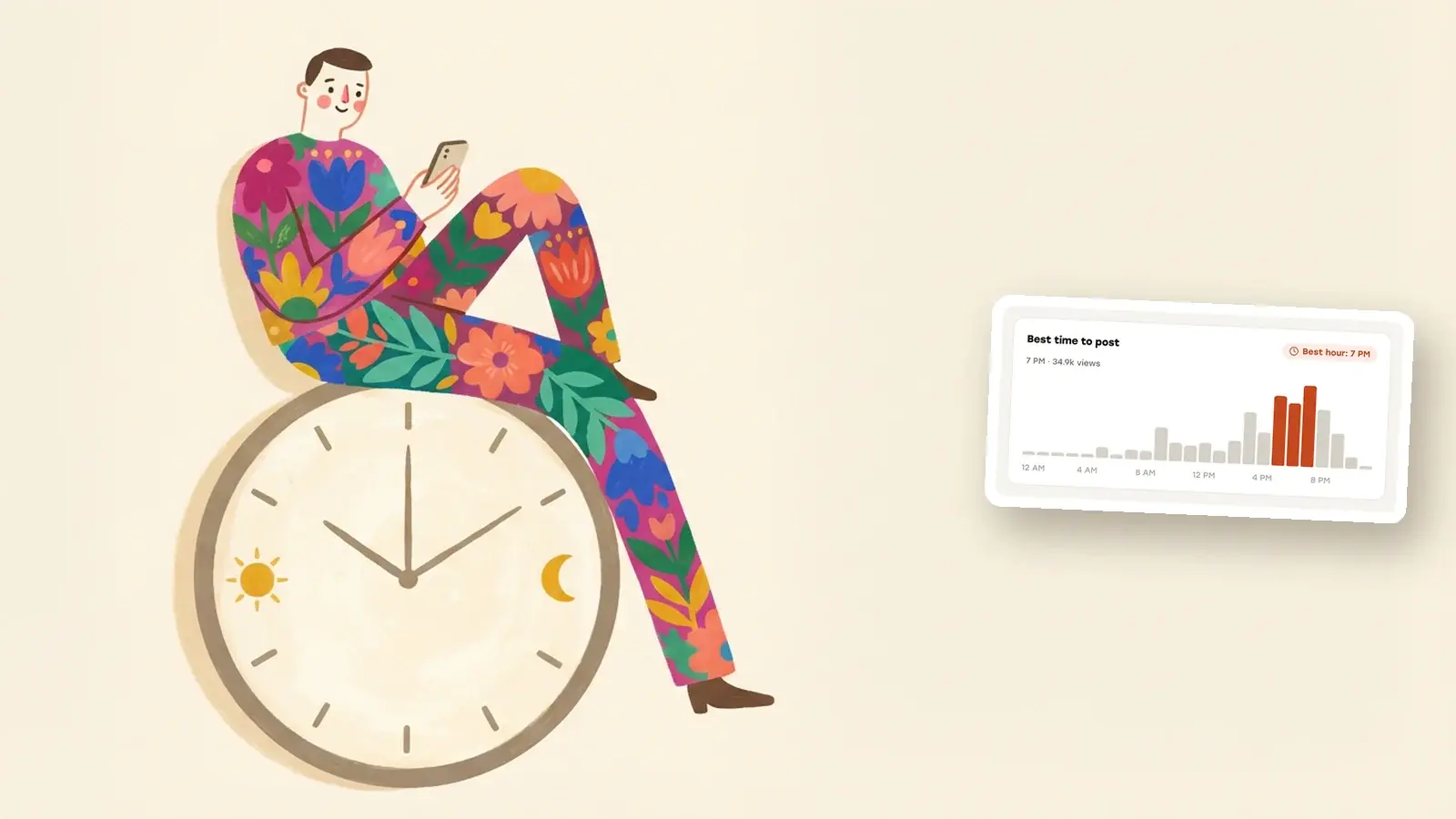
Why universal best-time charts don't fit your account, where Instagram, TikTok, YouTube, Facebook and Threads show your audience's hours, and how to test them.
Content Repurposing for Short Videos: What to Change Per Platform
How to repurpose your own short videos for TikTok, Reels, Shorts, Facebook and Threads, and what each platform's limits and originality rules really say.
Post once. Show up everywhere.
Start your 7-day free trial and publish your next video to every platform in minutes.Pick a plan and publish your next video to every platform in minutes.
Start your free trialSee plansCancel anytime