Social Media Content Calendar: A Simple Template and Examples
A one-week content calendar template for short videos that you can copy, how to fill it in, an example monthly cadence, and where a scheduler's calendar fits.

A social media content calendar is a list of the posts you plan to publish, with the date, the platforms and the status of each one. The simplest version that works is a table with one row per post and six columns: date and time, idea and hook, format, platforms, status and notes. Copy the template below into a spreadsheet or a notes app, fill one or two weeks at a time, and move each row’s status forward as the post gets made.
A one-week content calendar you can copy
Here’s one week for a small cooking account that posts short videos to TikTok, Instagram, YouTube and Facebook, plus text posts on Threads. The account and the ideas are made up; the structure is the part to copy.
| Day and time | Idea and hook | Format | Platforms | Status | Notes |
|---|---|---|---|---|---|
| Mon 12:00 | Garlic butter noodles. Hook: “Dinner in the time it takes to boil water” | Video, 45 s | TikTok, Instagram, YouTube, Facebook | Edited | YouTube title still missing |
| Tue 18:00 | Dicing an onion fast. Hook: “You’re cutting onions the slow way” | Video, 30 s | TikTok, Instagram, YouTube | Filmed | Voiceover needs a second take |
| Wed 09:00 | “What’s the one ingredient you always overbuy?” | Text | Threads | Ready | Reply to answers before lunch |
| Thu 18:00 | Weekly grocery haul, with prices | Video, 60 s | TikTok, Instagram | Idea | Film Wednesday evening |
| Fri 12:00 | Five pantry swaps | Carousel, 6 images | Instagram, Facebook, Threads | Idea | Pick the cover image first |
| Sat 10:00 | Weekend pancake stack | Video, 40 s | All five | Scheduled | Original sound only |
| Sun | Open slot | Use it for a trend, or skip it |
If you want a blank copy, paste this into any editor that understands Markdown tables, or split it on the pipes in a spreadsheet:
| Day and time | Idea and hook | Format | Platforms | Status | Notes |
| --- | --- | --- | --- | --- | --- |
|  |  |  |  |  |  |
How to fill in each column
Day and time. Start here, before any ideas. Fill in only the slots you can actually produce for. A calendar with fourteen slots and six finished videos is a to-do list that makes you feel behind. Write the time in your audience’s time zone if most of them live somewhere else.
Idea and hook. One line for the topic and, for videos, the first sentence or visual you’ll open with. If you can’t write the hook yet, the idea isn’t ready to be scheduled, which is useful to know on Monday instead of Friday.
Format. Video with a rough length, image, carousel or text. Length matters more than it looks: YouTube treats a square or vertical video of up to 3 minutes as a Short (YouTube Help, checked November 2026), so a planned four-minute video is a different kind of post there.
Platforms. List the accounts, not just the apps, if you run more than one per platform (more on running several accounts). Not every post belongs everywhere. The Wednesday text post wouldn’t work as a video, and the haul video is aimed at the two apps where that kind of video does well for this account. If one video goes to several platforms, you’ll still want a different title or caption for some of them; our guide to repurposing short videos covers what changes per platform.
Status. Keep the list short and in order: Idea, Filmed, Edited, Ready, Scheduled, Posted. Every row moves forward through that list, so on any given day you can see what’s stuck. Ready means the file and every caption are final. Scheduled means it’s in a scheduler with a time.
Notes. Whatever would stop the post from going out: a missing YouTube title, a music question, permission to show someone’s photo, a link that isn’t live yet. Clear the notes column before you set the status to Ready.
Skip a results column unless you’ll really fill it in a week later. Each app’s analytics already hold those numbers.
An example month
Here’s one possible month for the same account, with one recurring series per week and the fixed dates written in first. Week 1 is the week above. It’s an example, not a target.
| Week | Fixed dates | Recurring series | Planned posts |
|---|---|---|---|
| 1 | None | 15-minute dinners | 4 videos, 1 carousel, 1 Threads text post |
| 2 | A brand video due Thursday | Knife skills | 3 videos plus the brand video, 2 Threads text posts |
| 3 | None | Pantry basics | 4 videos, 1 carousel, 2 Threads text posts |
| 4 | A public holiday on Monday | Holiday baking | 5 videos, 1 Threads text post |
Four or five videos a week isn’t a platform recommendation. We didn’t find one in the five platforms’ official help pages (checked November 2026), and most numbers you’ll see come from third-party studies of other people’s accounts. Our view: pick a pace you can keep for a few months and judge it on your own results. For timing, see the best time to post on social media.
Rules that keep the calendar useful
Fill in rows one or two weeks out. The month table holds themes and fixed dates; rows with hooks and notes only make sense close to the date. Ideas for later go in a separate idea list, so the calendar only holds posts with a date and a real chance of being made.
One row per post, not per platform. A video that goes to four platforms is one row with four entries in Platforms. When the versions differ a lot (a different cut, not just a different caption), split it into two rows.
Batch if you can. Film several videos in one session and spread them over the next week or two. The calendar then mostly tracks Edited and Ready.
Leave open slots on purpose, like the Sunday row above. A calendar that’s full two weeks out has no room for the trend you’ll want to answer on Wednesday.
Review it weekly. Move or delete what didn’t get made.
Let the scheduler own the time. After a post is in a scheduler, the scheduler’s calendar is the source of truth for its time. If you also keep the time in a spreadsheet, sooner or later the two will disagree. Mark the row Scheduled and stop editing its time there.
Built-in schedulers have their own calendars, such as the week and month Planner for Facebook Pages in Meta Business Suite (Meta Business Help, checked November 2026), but none shows TikTok, YouTube and Meta’s apps side by side; how to schedule social media posts compares them.
Using Repostly’s calendar
Repostly’s calendar shows the posts you’ve scheduled and published, across every connected account, in one place. It takes over the Scheduled and Posted end of the template: you upload a video once, tick the accounts on TikTok, Instagram, YouTube, Facebook Pages and Threads (several per platform if you run them), and every destination lands in the same calendar. Keep Idea through Ready in your own table, and let Repostly handle the rest.
Open Posts and pick Calendar, or click Calendar in the sidebar. You can switch between Month and Week (the image at the top of this post is the week view). In the week view each entry shows its time, the start of the caption and an icon per platform. The month view drops the caption to fit more in; it shows up to five posts per day and a “more” link for the rest. Clicking a day number in the month view opens that week. Times are shown in your browser’s time zone.
Hover over an entry and you get a card with the caption, the time and every destination with its own status. Scheduled destinations say Scheduled; published ones show their views, likes and comments instead. Other statuses you can meet there are Queued, Processing, Failed, Paused, Cancelled and Needs attention, so a post that went out on four platforms and failed on the fifth looks different from one that’s fine everywhere.
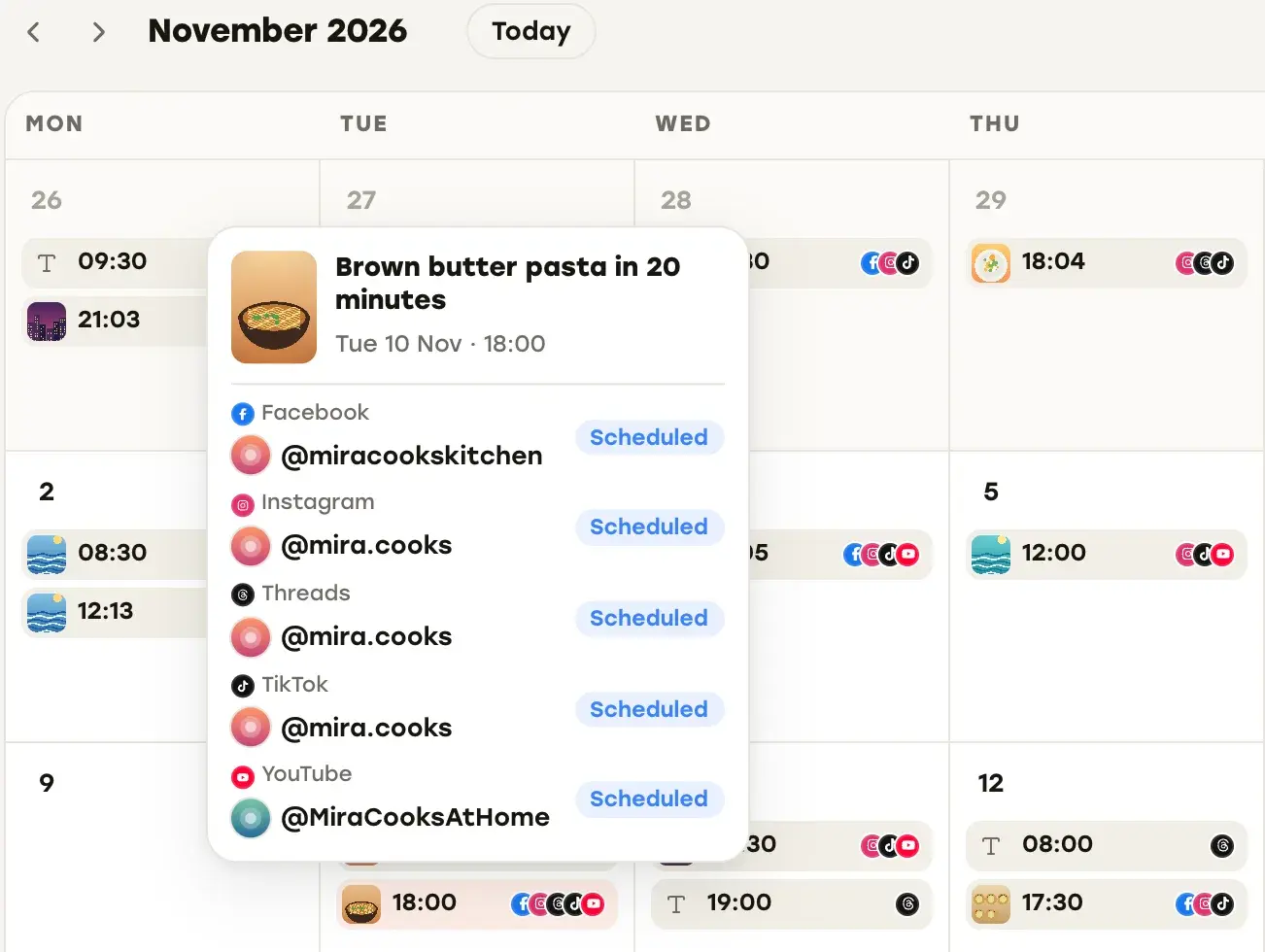
To move a post, click it. If every destination is still marked Scheduled, it opens in the editor, where you change the date or time in the When card and click Update Post. You can change the caption and per-platform settings there too. Once any destination has started publishing, clicking opens the post’s detail page instead, with each destination’s status and numbers.
Posts you published directly in the apps can appear in the calendar too, once Repostly has found them on your connected accounts. That makes it a record of what actually went out, not only of what you planned in Repostly. If you want one account on its own, open it from Accounts: each account has its own Posted, Scheduled and Calendar views.
The Posts list
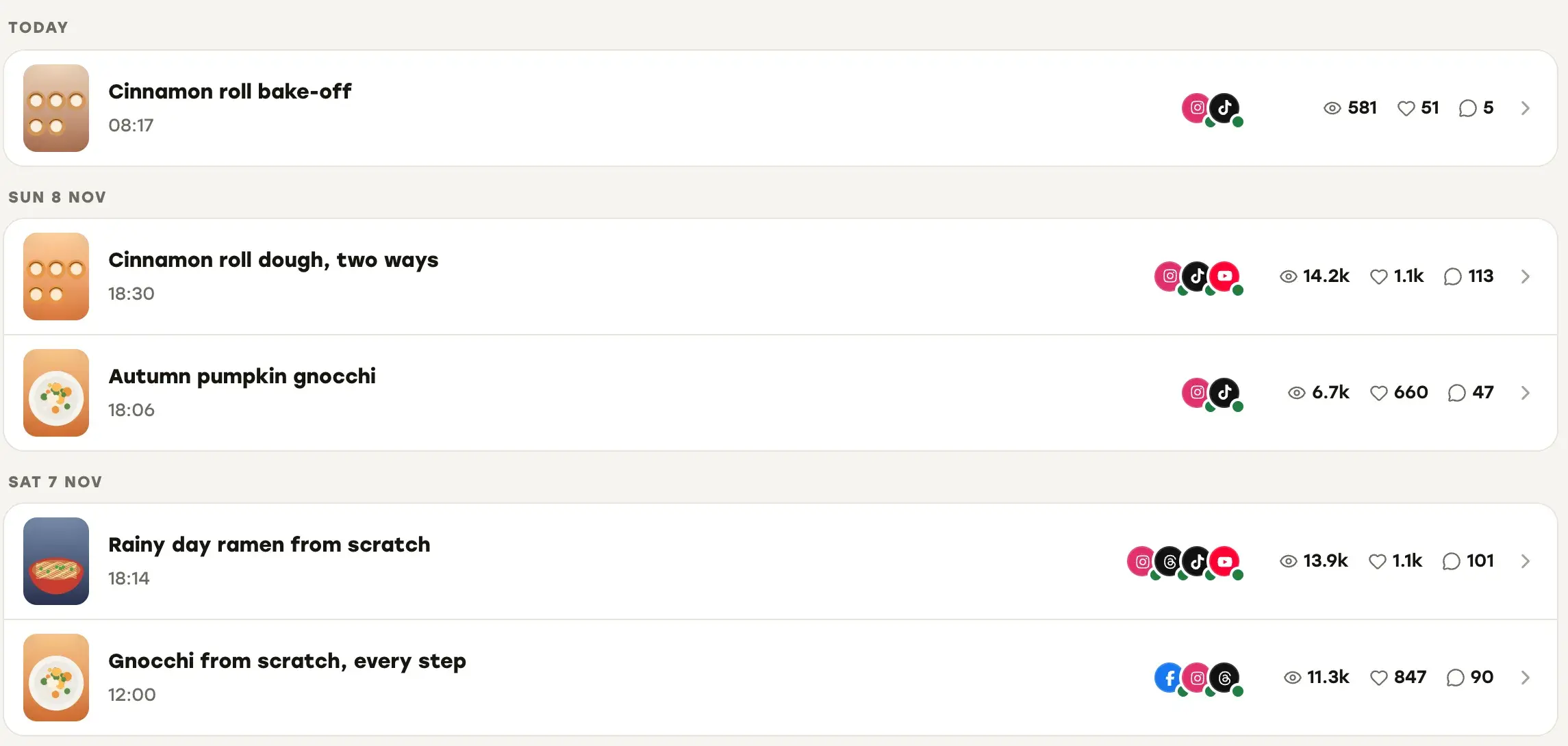
The Posted tab lists published posts by day, with a status dot on each platform icon and combined views, likes and comments; a failed destination gets a red label, and a banner links to View failed posts when new failures come in. The Scheduled tab lists what’s still waiting.
Planning weeks ahead
There’s no date limit on how far ahead you schedule. A post goes out as long as its account is still connected and your plan is active when it’s due. If publishing was paused and a post would end up more than five hours late, Repostly doesn’t publish it hours late on its own. It waits on a page called Posts that missed their time, where you decide whether to post it, reschedule it or discard it. A paused post still waiting 30 days after its time is marked failed.
Once a row is Ready, its per-platform details go into the Settings card, with one row per destination on the same screen: the YouTube title you noted, Reels or Video on Facebook, TikTok’s audience and disclosure options.
If you already keep a calendar like the one above, Repostly picks up where your Ready column ends: one upload per video, every account in one calendar, and each destination’s views, likes and comments once it’s out. You can try Repostly free for 7 days and schedule your next batch from one screen. Plans start at $19 a month for 5 accounts.
Frequently asked questions
What should a social media content planning template include?
Six columns, with one row per post: date and time, idea and hook, format, platforms, status and notes. For the status column, use a short list of values in order: idea, filmed, edited, ready, scheduled, posted.
Keep reading

Content Repurposing for Short Videos: What to Change Per Platform
How to repurpose your own short videos for TikTok, Reels, Shorts, Facebook and Threads, and what each platform's limits and originality rules really say.
How to Manage Multiple Social Media Accounts Without Losing Track
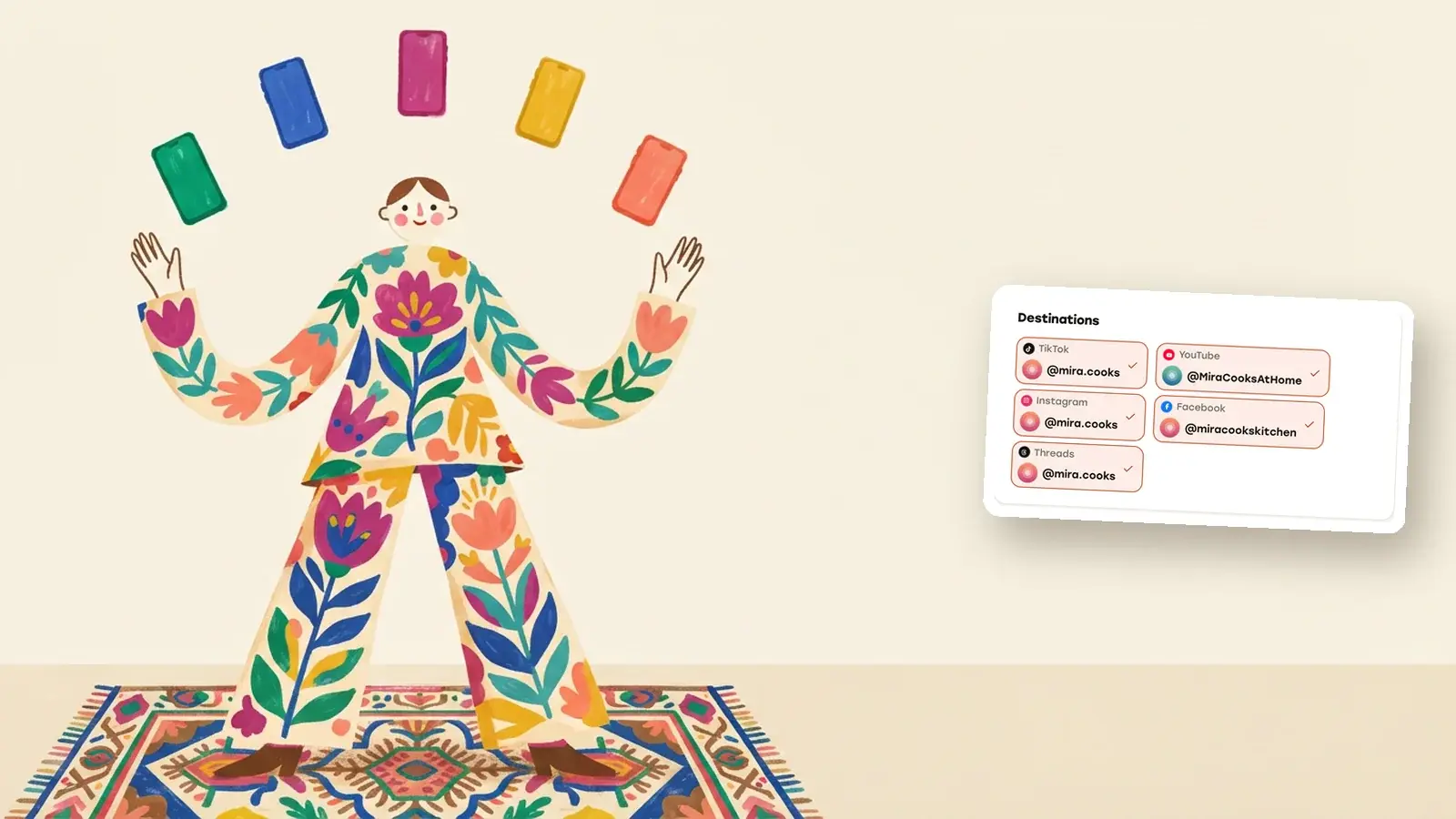
How TikTok, Instagram, YouTube, Facebook and Threads handle several accounts, how to keep them secure, and when one dashboard beats switching apps.
The Best Time to Post on Social Media Is in Your Own Analytics
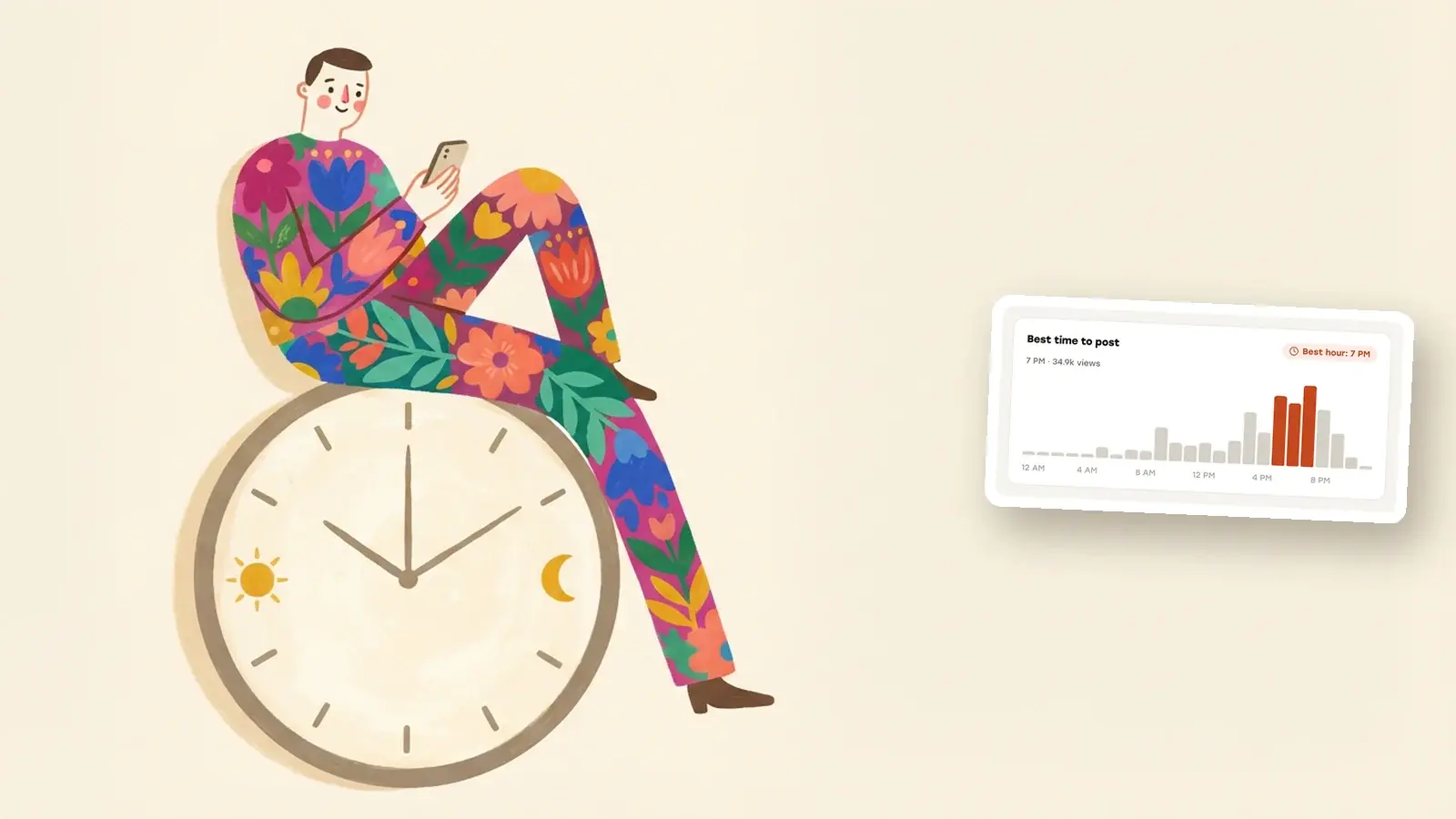
Why universal best-time charts don't fit your account, where Instagram, TikTok, YouTube, Facebook and Threads show your audience's hours, and how to test them.
Post once. Show up everywhere.
Start your 7-day free trial and publish your next video to every platform in minutes.Pick a plan and publish your next video to every platform in minutes.
Start your free trialSee plansCancel anytime