How to Post Your Facebook Videos to YouTube, Step by Step
Facebook has no button that sends a video to YouTube. Get your own file back out of Facebook, then upload it to YouTube as a Short or a regular video.

There’s no button on Facebook that sends a video to YouTube. To post a Facebook video on YouTube, you get the video file onto your phone or computer, then upload it to your channel in YouTube Studio like any other video. To qualify as a YouTube Short, the video has to be square or vertical and no longer than 3 minutes.
The upload is the easy half. Most of the effort goes into getting a clean file back out of Facebook, and into the things that don’t survive the trip, like licensed music and your caption. This guide covers both, for your own videos only. If a video belongs to someone else, it doesn’t belong on your channel.
First, look for the original file
Before you download anything from Facebook, check whether you still have the video you uploaded in the first place. Look in your phone’s camera roll or in the folder your editing app exports to.
That original is almost always the better choice. It has your full audio track, while a copy downloaded from Facebook can come back muted or with music cut, as the next section shows. It’s the safer file to start from.
If it’s gone, Facebook has official ways to get your video back. Which one fits depends on how many videos you need and whether you posted them on your profile or a Page.
Get your video back out of Facebook
Download one reel from the Facebook app
Since the end of September 2025, every video posted to Facebook is published as a reel, and you can download reels you created yourself. Facebook’s steps for downloading your own reel (checked November 2026) are the same on iPhone and Android:
- From your Feed, tap your profile picture in the top left.
- Tap Reels, next to Photos.
- Open the reel you want, then tap Options.
- Tap Download reel. It’s saved to your camera roll or gallery.
Three limits to know before you rely on this:
- It’s app only. Facebook says the option isn’t available on computers.
- Older videos may not work. Videos posted before September 2025 keep the download options they had, so if one couldn’t be downloaded before, it still can’t.
- Audio can go missing. If the reel uses someone else’s original audio, the download is muted. If it has licensed music, the audio may be muted or only partly included, depending on length and your country’s music rights.
A reel built around a song from Facebook’s library may come out silent, and you’d have to re-add music anyway.
Export all your videos at once
If you’re moving a whole back catalog, one reel at a time gets old fast. Facebook’s Export your information tool packs up your posts, including photos and videos, into a download. The steps from Facebook Help (checked November 2026):
- Click your profile picture in the top right, then Settings & privacy, then Settings.
- Click Meta Account, then Your information and permissions.
- Click Export your information, then Create export.
- Pick your profile and choose Export to device.
- Narrow it down if you like. You can pick which information to include, a date range, the format and the media quality. High quality makes the file bigger, so check your free space.
- Click Start export.
Facebook notifies you when the export is ready, and you then have 4 days to download it. Some accounts still see Accounts Center instead of Meta Account settings; the tool is under Your information and permissions in both. Choose the HTML format if you just want to open the files yourself. It arrives as a ZIP with your videos inside.
Videos you posted as a Page
If the videos live on a Facebook Page rather than your profile, request a copy of the Page instead. You need full control of the Page. Switch into the Page (profile photo, then See all profiles), open Settings & privacy, then Settings, and click Download your information in the left column. Pick the media quality and the categories you want, then click Request a download (Facebook Help, checked November 2026). This link also expires after 4 days.
What not to do
You can’t download other people’s reels with these tools, and you shouldn’t try to get around that with a “Facebook video downloader” website. Re-uploading someone else’s video to your channel is a copyright problem on YouTube no matter how you got the file.
Upload the video to YouTube
With the file on your computer, here’s the upload in YouTube Studio (checked November 2026):
- Sign in to YouTube Studio.
- Click Create in the top right, then Upload videos.
- Select the file.
- On the Details page, add a title, description and thumbnail, and set the audience (whether it’s made for kids).
- On the Checks page, YouTube screens for copyright issues. You don’t have to wait for it to finish.
- On the Visibility page, pick Public, Unlisted or Private, or schedule a date. Then click Save.
Your Facebook caption doesn’t come along, so this is where you rewrite it. YouTube titles max out at 100 characters and descriptions at 5,000, per the same page. A caption written as a Facebook hook often makes a weak YouTube title, so write one that says plainly what the video is about.
Short or regular video?
YouTube Help lists different requirements for each:
| YouTube Short | Regular video | |
|---|---|---|
| Shape | Square or vertical (YouTube Help) | Any |
| Length | Up to 3 minutes | Up to 15 minutes by default; longer once your account is verified, up to 256 GB or 12 hours, whichever is less (YouTube Help) |
All checked November 2026. A vertical reel of 3 minutes or less meets the Shorts requirements. A longer or horizontal Facebook video doesn’t, so it goes up as a regular video. If it’s over 15 minutes and your channel isn’t verified yet, YouTube’s help page explains how to verify in the YouTube mobile app, with a code sent by text message or an automated voice call.
Watch the music
If the video has music you didn’t make or license for YouTube, expect trouble there. YouTube’s Shorts help asks you to make sure any copyrighted material in a video made elsewhere is approved for use on YouTube, or you may get a Content ID claim. Don’t assume a song you added in Facebook’s editor is cleared for your YouTube channel. Replace it with music you have the rights to use on YouTube, or post the video without it.
Skip the round trip next time with Repostly
Everything above exists because the video went to Facebook first and YouTube later. If you post the same videos to both regularly, it’s easier to send the original file to both at once, with its full audio and each platform’s settings on one screen. That’s what Repostly is for, and the same upload can go to TikTok, Instagram and Threads too.
Here’s the routine in Repostly:
- Click New post and upload your video.
- Under Destinations, tick your Facebook Page and your YouTube channel.
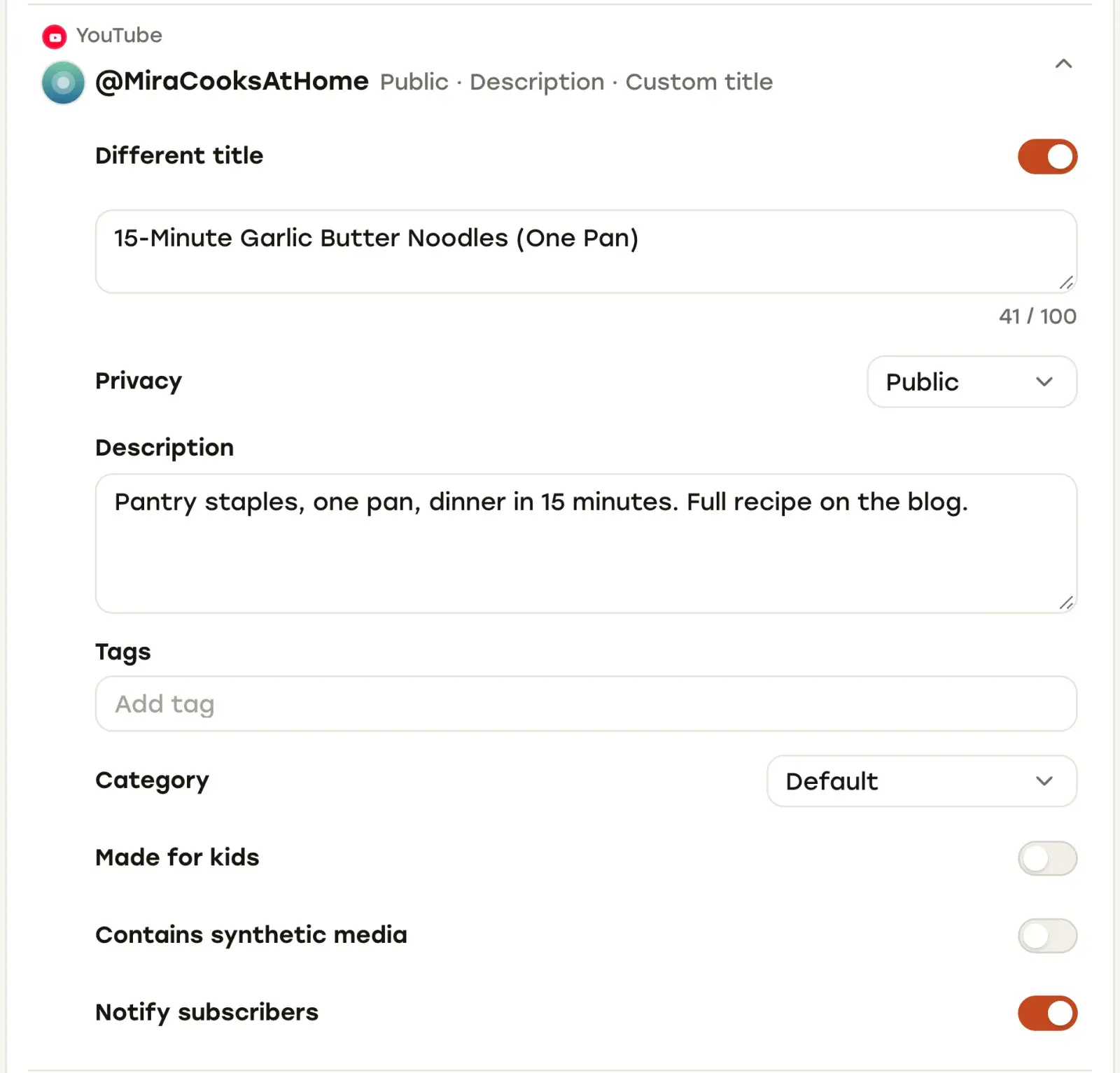
- Write one caption. Then open the YouTube row in Settings and turn on Different title to give YouTube its own searchable title.
- In the same row, set privacy, a description, tags and a category, and the made-for-kids, synthetic-media and notify-subscribers switches.
- Pick a time and time zone under When, then click Schedule Post.
Shorts work the same way as with a manual upload: YouTube treats a square or vertical video of up to 3 minutes as a Short, so there’s no separate Shorts switch to set.
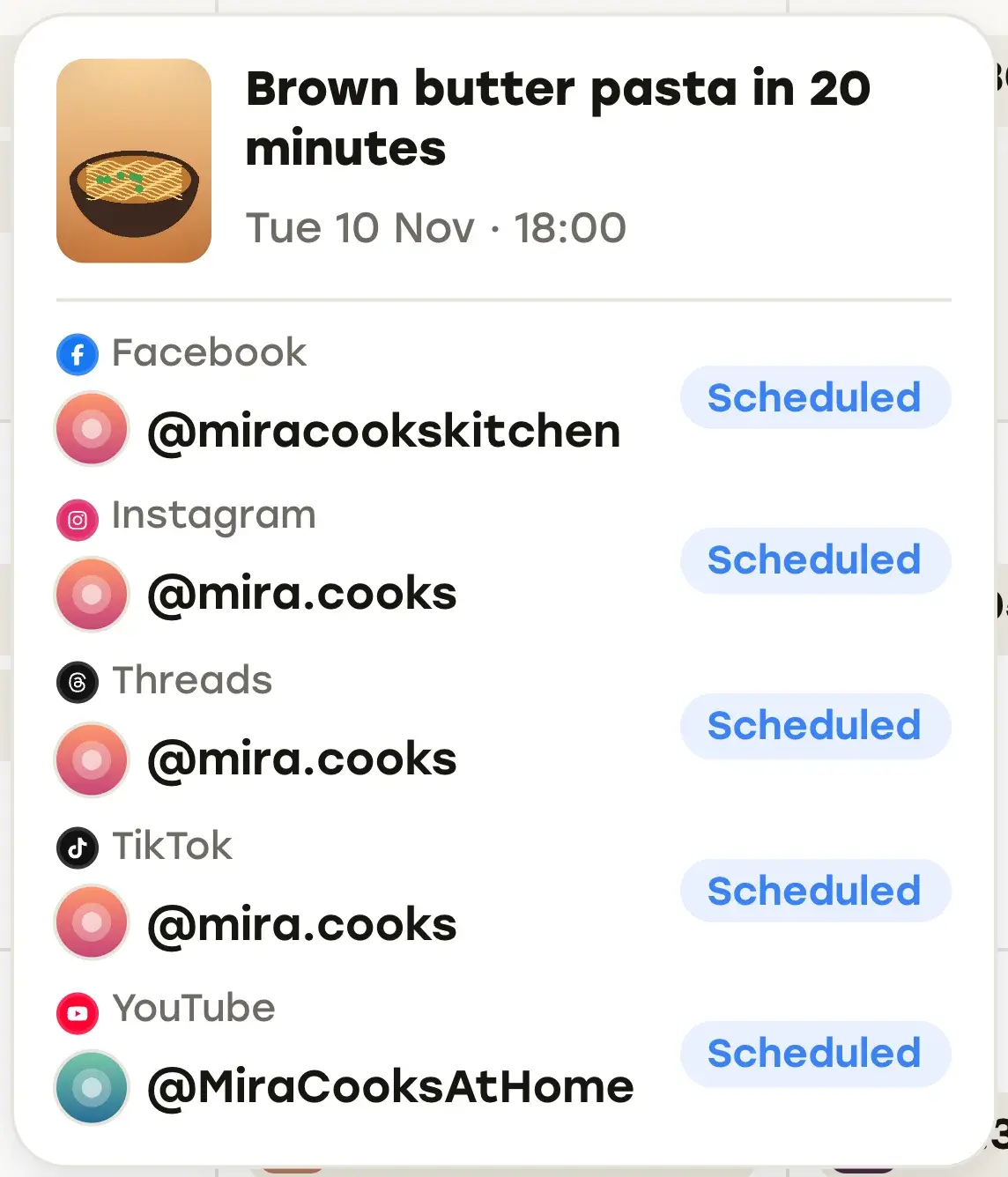
Everything you’ve scheduled and posted sits on one calendar. Hover a post and it lists every destination with its own status, so you can check that Facebook and YouTube are both lined up before the time comes.
On the Facebook side, Repostly publishes to Facebook Pages, so connect the Page your videos belong on. You sign in through Facebook itself, and Repostly never sees your password.
For a wider plan on getting more out of every video, see our guide to content repurposing. Going the other way? Read how to share a YouTube video on Facebook.
If you post videos to Facebook and YouTube every week, Repostly turns the round trip into one upload and one schedule, and the post’s detail page then shows each destination’s status, views, likes and comments side by side. Plans start at $19 a month for 5 accounts, and you can try Repostly free for 7 days.
Frequently asked questions
How do I post Facebook videos to YouTube?
Get the video file first: use your original export, or download a reel you posted from the Facebook app (open your profile, tap Reels, open the reel, tap Options, then Download reel). Then sign in to YouTube Studio, click Create, then Upload videos, choose the file, fill in the details and pick a visibility. YouTube Help lists the requirements for a Short as a square or vertical video of up to 3 minutes.
Keep reading

How to Share a YouTube Video on Facebook (and When to Upload Instead)
Share a YouTube link on Facebook from a computer or phone in a few clicks, and learn when uploading your own video as a Facebook reel is the better move.
How to Post a YouTube Video on Instagram as a Reel
Why a YouTube link in an Instagram caption goes nowhere, how to turn your own video into a Reel that fits, and how to reframe a 16:9 video to 9:16.

How to Schedule Social Media Posts: Native Tools vs. One Scheduler
Where TikTok, Instagram, Facebook, YouTube and Threads let you schedule posts, how far ahead each allows, and when one scheduler for all of them is worth it.
Post once. Show up everywhere.
Start your 7-day free trial and publish your next video to every platform in minutes.Pick a plan and publish your next video to every platform in minutes.
Start your free trialSee plansCancel anytime