How to Post a YouTube Video on Instagram as a Reel
Why a YouTube link in an Instagram caption goes nowhere, how to turn your own video into a Reel that fits, and how to reframe a 16:9 video to 9:16.
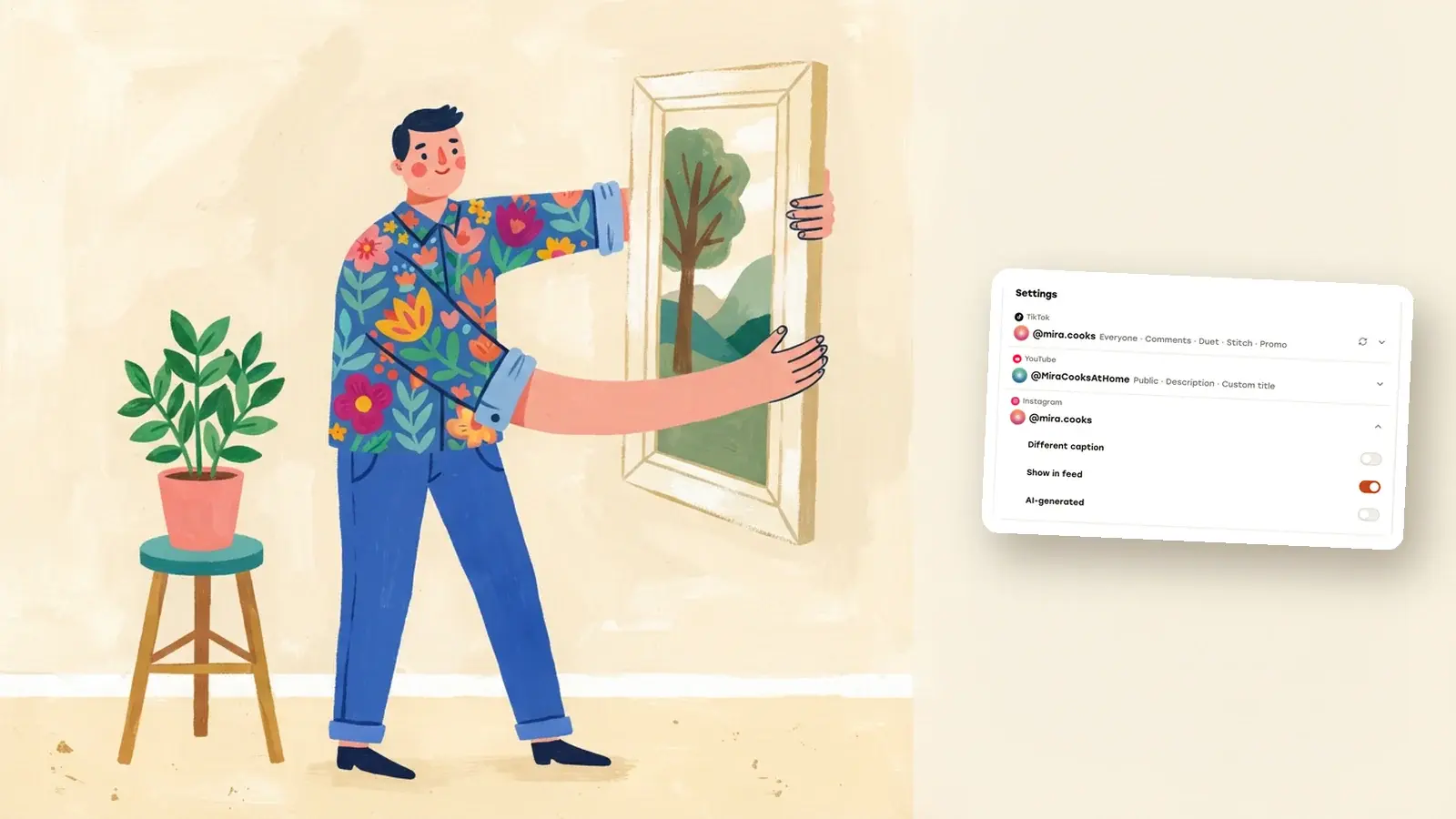
You can’t post a YouTube link on Instagram and have it play. As of November 2026, a URL typed into a regular caption isn’t tappable either; Meta sells clickable links in posts and reels as a capped, paid Meta One feature (Meta Help). So you have two real options. To send people to YouTube, put the link in your bio or on a Story with the Link sticker. To get views on Instagram itself, upload your own video file as a reel, ideally cut to 3 minutes or less and reframed from 16:9 to vertical 9:16.
Which one you pick depends on the goal. A link is for driving YouTube watch time. A reel is for reaching people on Instagram who may never click away. For your own videos, the reel is usually worth the extra work.
Why a YouTube link in your caption goes nowhere
On a regular account (checked November 2026), a link pasted into a caption shows up as plain text. Followers would have to copy it by hand, which is a lot to ask of someone scrolling.
There is one exception, and it costs money. Meta now sells an Add link option on posts and reels to eligible public accounts with a paid Meta One plan, capped at a set number of linked posts and reels per month depending on the plan (Meta Help, checked November 2026). Links can’t be edited after you share. For most people that’s not the answer.
The free places a link does work:
- Your profile. You can add up to 5 websites to your profile: tap your profile picture, then Edit profile, then Links, then Add external link (Instagram Help, checked November 2026). A caption line like “Full video on YouTube, link in bio” points people there.
- Stories. The Link sticker puts a tappable link on a Story. Instagram opened it to all accounts in 2021, except new accounts and accounts that repeatedly break its rules (Instagram announcement). Add your content, tap the sticker tool, pick Link, paste the URL and tap Done.
If the video belongs to someone else, stop here. Share the link through your bio or a Story and leave the uploading to its owner.
What Instagram accepts as a reel
These are Instagram’s limits for reels (all checked November 2026):
- Length. The app lets you record or upload reels up to 20 minutes, but reels over 3 minutes won’t be recommended to new audiences (Instagram Help). If reach outside your followers is the point, 3 minutes is the real limit.
- Shape. You can upload a reel with an aspect ratio anywhere between 1.91:1 (wide) and 9:16 (tall) (Instagram Help). A normal 16:9 YouTube video is inside that range, so it uploads fine. It just doesn’t fill the screen.
- Quality. Instagram asks for at least 30 frames per second and a minimum resolution of 720 pixels (same page). Aim for 1080 × 1920 if you’re exporting fresh.
Apps that publish for you through Instagram’s API, Repostly included, work under slightly different rules: a reel there must be between 3 seconds and 15 minutes long and at most 300 MB, at 23 to 60 frames per second, with 9:16 recommended to avoid cropping or blank space (Instagram Platform docs, checked November 2026).
One shortcut: if your YouTube video is already a Short, the format work is done. YouTube only treats an upload as a Short when it’s square or vertical and up to 3 minutes long (YouTube Help, checked November 2026), which lines up with what Instagram recommends.
Get your own video file
Start with the file you exported before uploading to YouTube. It has your full resolution, and for the next step that matters more than you’d think.
If it’s gone, YouTube Studio can give you a copy of anything you uploaded (YouTube Help, checked November 2026):
- Sign in to YouTube Studio.
- Click Content in the left menu.
- Find the video, open its Menu and choose Download.
You get an MP4 in 720p or 360p. YouTube blocks the download when the video has a copyright or Community Guidelines strike or uses a preapproved audio track, and allows five downloads of the same video per day.
Don’t reach for a “YouTube to Instagram” downloader site. You don’t need one for your own videos, and for anyone else’s video it means reposting work you don’t have the rights to.
Reframe a 16:9 video for vertical
You have three choices, each with a trade-off.
Post it horizontal
Upload the 16:9 file as it is. Instagram accepts it, and on a phone it shows as a band across the middle of a tall screen. It’s fine for a quick share of something that only works wide, like a screen recording or a landscape shot. For anything you hope will travel, it’s the weakest option.
Re-export from your edit project
This is the best result by far, because you’re cropping from your full-quality source footage. Duplicate your project or timeline, set it to 1080 × 1920, reposition each shot so the subject stays in frame, and export a new file. Two editors can do the repositioning for you:
- Premiere Pro: select the sequence, choose Sequence > Auto Reframe Sequence and pick a target aspect ratio. Premiere makes a reframed copy of the sequence and leaves the original alone (Adobe Help, checked November 2026).
- Final Cut Pro: put the clips in a vertical project, select them and choose Modify > Smart Conform. It reframes each clip around faces and other points of interest, and you can adjust the result with the Transform effect’s Position (Apple Support, checked November 2026).
Either way, watch the whole result before you export. Automatic reframing can follow the wrong subject, for example in a wide shot of two people talking, and it can cut off on-screen text near the edges.
Crop the finished file
If you only have the finished video, open it in any editor that supports a 9:16 canvas and crop it. Watch the numbers, though. A 9:16 slice of a 1920 × 1080 video is only about 608 pixels wide. From a 720p YouTube Studio download it’s about 405 pixels wide, and that narrow strip has to be blown up to fill a phone screen, so it will look soft. A 4K original gives you a slice around 1,215 pixels wide, which is plenty.
Whichever route you take, pick a section that makes sense without the rest of the video. A 3-minute slice of a 20-minute tutorial works when it answers one question start to finish. The first 3 minutes, with your intro and channel plug, usually don’t.
Upload it to Instagram
On your phone (Instagram Help, checked November 2026):
- From your Feed, tap Create at the bottom, then REEL.
- Tap your camera roll in the bottom left and pick the video.
- Tap Next, add audio, text or stickers if you want, then tap Next again.
- Choose a cover, write a caption and tap Share.
On a computer at instagram.com, click Create, then Post, then Select from computer. Pick the file, set the cover and trim on the next screen, click Next, write your caption and click Share (same Help page, Computer tab).
For the caption, write for Instagram rather than pasting your YouTube description. A line about what the full video covers, plus “link in bio”, does more than a block of timestamps nobody can click.
Post to Instagram and YouTube together with Repostly
If you’re making a vertical cut anyway, it’s easier to publish it everywhere at once instead of downloading and re-uploading later. In Repostly you upload one video, pick every account it should go to, and give each destination its own settings on the same screen.
- Click New post and add the vertical video.
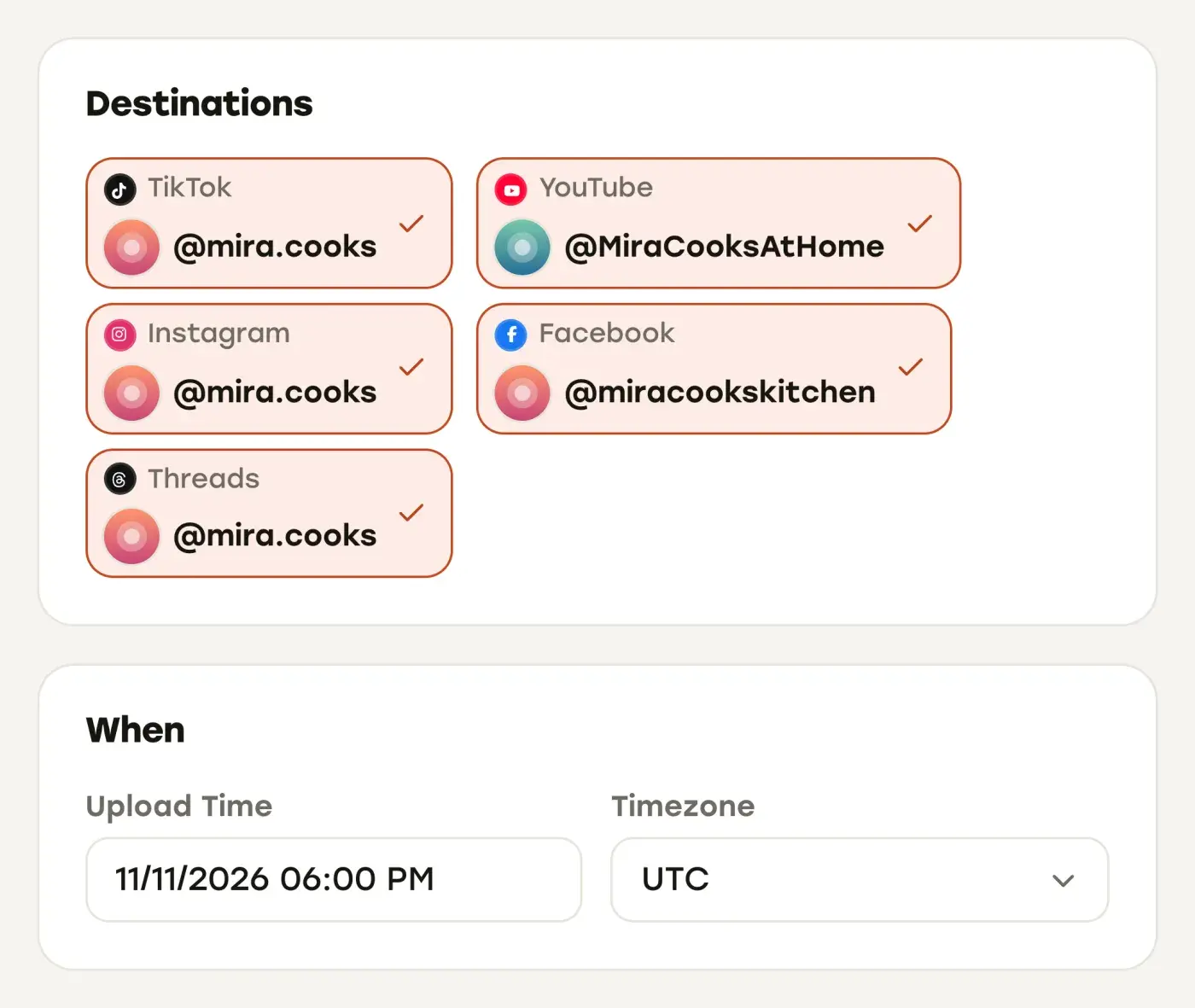
- Under Destinations, tick your Instagram account and your YouTube channel, plus TikTok, Facebook or Threads if you use them.
- Write one caption, then pick a date, time and time zone under When.
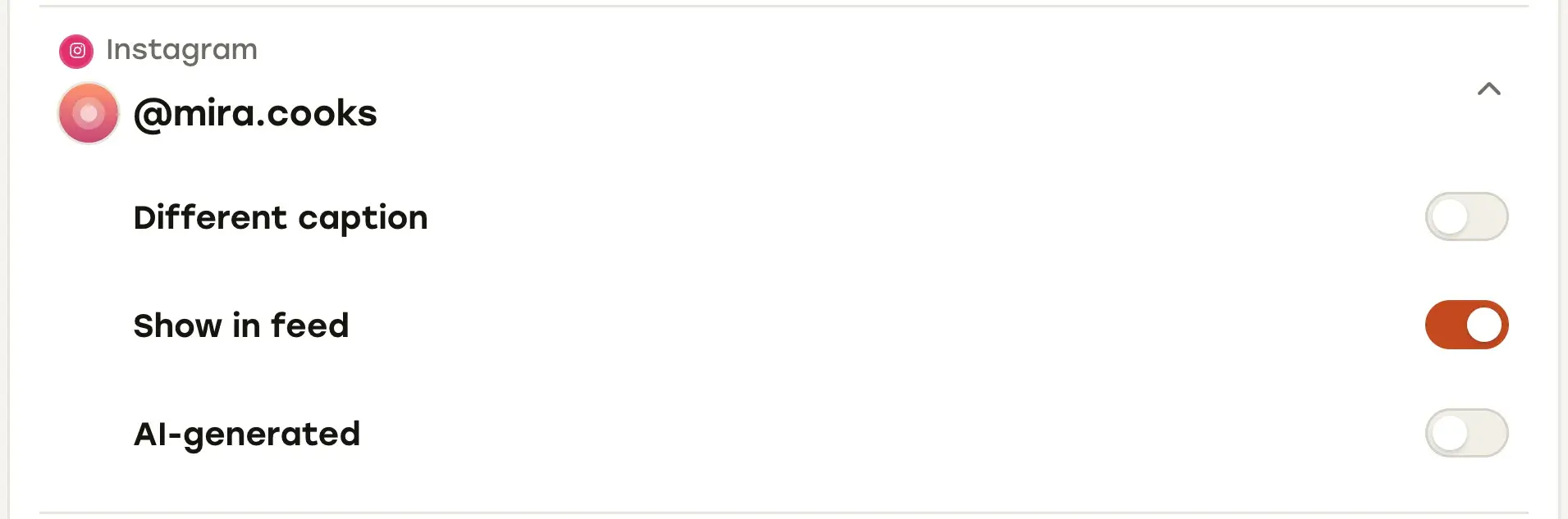
- In the Settings card, open the Instagram row. Turn on Different caption if Instagram should get its own text, leave Show in feed on so the reel can appear in Feed as well as the Reels tab (Instagram Platform docs), and switch on AI-generated if that applies.
- Click Schedule Post.
A few things to know before you schedule:
- Reels from Repostly, Stories from the app. On Instagram, Repostly publishes reels, images and carousels, so for a Story with a Link sticker, use the Instagram app.
- Upload the vertical cut. Repostly publishes the file you upload as it is, so make the 9:16 version first. The API limits above apply: 3 seconds to 15 minutes and 300 MB at most.
- Caption room is counted for you. Instagram allows 2,200 characters (same API docs). When you write a separate Instagram caption, a counter shows how much room is left, and Repostly checks the limit before it schedules.
- Connect a professional account. Repostly connects through Instagram’s official API for businesses and creators (Meta for Developers, checked November 2026), so it never sees your password. A personal account switches to a creator or business account first.
- The same cut can be a Short. The vertical cut that goes to Instagram can also go to YouTube, which treats a square or vertical video of up to 3 minutes as a Short (YouTube Help), so there’s no Shorts switch to set. Your long 16:9 video gets its own upload.
Want the same video on Facebook too? See how to share a YouTube video on Facebook. For a plan to get more than one post out of every video you make, read our guide to content repurposing.
If you’re cutting vertical versions every week, Repostly sends each one to Instagram, YouTube, TikTok, Facebook Pages and Threads from one upload, and shows everything scheduled and posted on one calendar. Plans start at $19 a month for 5 accounts, and you can try Repostly free for 7 days.
Frequently asked questions
How do I post YouTube videos on Instagram?
If the video is yours, get the file (your original export, or a download of your own upload from YouTube Studio under Content, then the video's menu, then Download). Cut it to 3 minutes or less if you want Instagram to recommend it to new people, reframe it to vertical 9:16 if you can, and upload it as a reel. If the video isn't yours, share the YouTube link through the link in your bio or a link sticker on a Story instead.
Can I share a YouTube video to Instagram directly?
Not as a playable post. Instagram doesn't embed YouTube videos, and as of November 2026 a web address typed into a regular caption isn't tappable; Meta sells clickable links on posts and reels only as a capped, paid Meta One feature. You can put the YouTube link in your profile's links or on a Story with the Link sticker. To have the video play on Instagram, you have to upload the video file itself as a reel, which only makes sense for your own videos.
Keep reading

How to Post Your Facebook Videos to YouTube, Step by Step
Facebook has no button that sends a video to YouTube. Get your own file back out of Facebook, then upload it to YouTube as a Short or a regular video.

How to Share a YouTube Video on Facebook (and When to Upload Instead)
Share a YouTube link on Facebook from a computer or phone in a few clicks, and learn when uploading your own video as a Facebook reel is the better move.

The Best Time to Post on Social Media Is in Your Own Analytics
Why universal best-time charts don't fit your account, where Instagram, TikTok, YouTube, Facebook and Threads show your audience's hours, and how to test them.
Post once. Show up everywhere.
Start your 7-day free trial and publish your next video to every platform in minutes.Pick a plan and publish your next video to every platform in minutes.
Start your free trialSee plansCancel anytime