How to Share a YouTube Video on Facebook (and When to Upload Instead)
Share a YouTube link on Facebook from a computer or phone in a few clicks, and learn when uploading your own video as a Facebook reel is the better move.

To share a YouTube video on Facebook, click Share under the video on YouTube and pick Facebook, or copy the link and paste it into a new Facebook post. On your phone it’s the same idea: tap Share in the YouTube app and choose Facebook from the list.
That’s all you need for someone else’s video. If the video is yours, though, a link is usually the weaker option. Uploading the file to Facebook turns it into a reel that plays right there in Feed and can be shown to people who don’t follow you yet. A link post mostly sends people off to YouTube.
Link or upload: pick based on whose video it is
Two quick questions settle it.
Is it someone else’s video? Share the link. Downloading another creator’s video and uploading it to your own Page is not a shortcut you want, and YouTube’s own download option only works for videos you uploaded.
Is it your video? Then ask where you want the views. If the goal is YouTube watch time, subscribers or a long video that only makes sense on YouTube, share the link. If the goal is reach on Facebook, upload the video.
Here’s how the two differ in practice (checked November 2026):
| Link post | Uploaded video | |
|---|---|---|
| What Facebook publishes | A post with a link preview | A reel (Facebook Help) |
| Where views land | Mostly on YouTube | On Facebook |
| Shown as a reel in Feed and the Reels tab | No | Yes, with a chance to be discovered beyond your friends and followers (Meta Business Help) |
| Counts toward a Page’s link limit | Yes, if your Page has one | No |
The last row is new and easy to miss. Facebook now caps some Pages at 2 organic posts or comments with links per month unless they pay for a Meta One plan with a higher allowance (checked November 2026). Facebook says the limit “may not apply to all Pages,” so check whether yours has it. A YouTube link counts; links to Facebook, Instagram, WhatsApp and Threads don’t.
The first row matters too. Since September 2025, Facebook publishes every uploaded video as a reel, whatever its length or orientation (Facebook Help, checked November 2026). A link post never becomes one.
Meta doesn’t publish numbers comparing link reach with reel reach, so be wary of anyone quoting exact percentages. The difference is structural. A reel lives on Facebook and can be recommended to new people there, while a link is a door out of Facebook.
Share a YouTube link from a computer
These steps follow YouTube Help (checked November 2026).
- Open the video on youtube.com.
- Click Share under the player.
- Click the Facebook icon and finish the post in the Facebook window that opens.
Want viewers to land on a specific moment? In the same Share panel, tick Start at and enter the time before you share or copy the link.
If you’d rather write the post in Facebook, copy the link from the Share panel instead. Then, in Facebook, click What’s on your mind? at the top of your Feed, paste the link, add your text and click Post. Facebook may pull a preview image in from the link; click the X on it if you’d rather post without one. To post as a Page, switch into the Page first: click your profile photo, then See all profiles, and pick the Page (Facebook Help).
Share a YouTube link from your phone
On Android and iPhone the YouTube app works the same way (YouTube Help, checked November 2026):
- Open the video in the YouTube app.
- Tap Share below the player.
- Pick Facebook from the list of apps. If it isn’t there, tap Copy link, open the Facebook app and paste the link into a new post.
That’s the whole job for a link. The rest of this post is for your own videos.
Upload your own YouTube video to Facebook instead
Get the video file
The best file is the one you exported before uploading to YouTube. It has the full quality you edited at.
If you no longer have it, YouTube Studio lets you download videos you uploaded: open Content, pick the video, open its menu and choose Download (YouTube Help, checked November 2026). You get an MP4 in 720p or 360p, which is fine for a phone screen but softer than your original. YouTube blocks the download in a few cases, for example when the video has a copyright strike or uses a preapproved audio track, and after five downloads of the same video in 24 hours.
Skip third-party “YouTube downloader” sites. You don’t need them for your own videos, and using them on other people’s videos means posting content you don’t have the rights to.
Upload it on a computer
From Facebook Help (checked November 2026):
- Click your profile picture in the top right, then your name.
- Click Reels, then Create reel.
- Click Add video, choose the file and click Next.
- Trim it or pick a cover if you want, then click Next.
- Add a description and choose the audience.
- Click Publish.
For a Page, switch into the Page first, the same way as for a link post. Music, effects and multi-clip editing are only in the mobile app.
Upload it on your phone
From Meta Business Help (checked November 2026):
- In the Facebook app, tap + in the top right of your Feed and choose Reel.
- Select the video from your phone.
- Add audio, text or effects if you want, then tap Next.
- Write a description and choose the audience.
- Tap Share now.
Reels from business or creator Pages are always public. For the file itself, Facebook recommends MP4 at 1080p with H.264 or H.265 video and 24 to 60 frames per second (requirements, checked November 2026). A file from YouTube Studio at 720p will still upload; it just won’t be as sharp.
Post to YouTube and Facebook at the same time with Repostly
Downloading from YouTube and uploading again only exists because the video went to YouTube first. If you post new videos regularly, it’s simpler to upload the original once and send it to both places together. That’s what Repostly does: your original file goes to your YouTube channel and your Facebook Page in one upload, each with its own settings on one screen, and to TikTok, Instagram and Threads too if you use them.
- In Repostly, click New post and add your video.
- Under Destinations, tick your YouTube channel and your Facebook Page. Add TikTok, Instagram or Threads too if you use them.
- Write one caption. In Settings, each destination gets its own row, so you can give YouTube a different title and Facebook a different caption.
- In the Facebook row, leave Post as on Reels.
- Pick the date, time and time zone under When, then click Schedule Post.
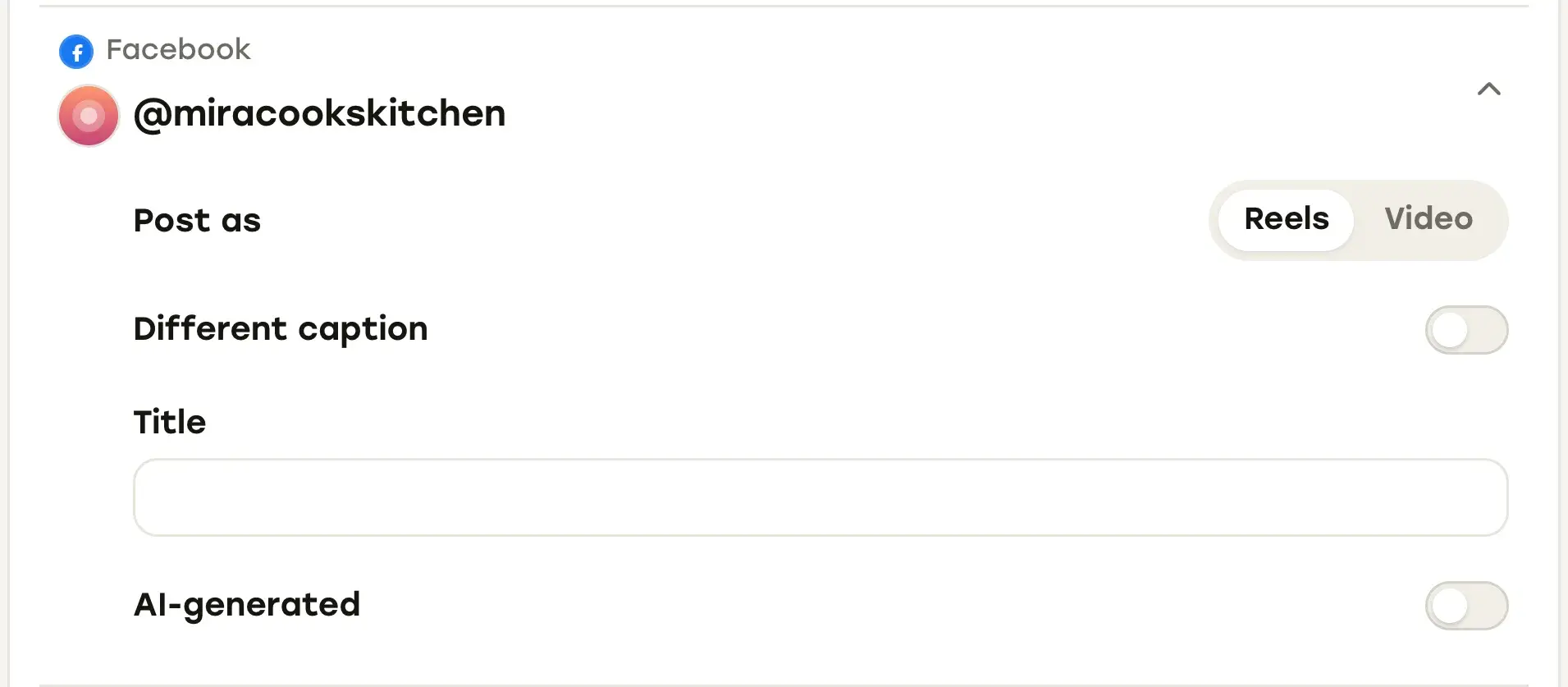
A few details that help you set it up right:
- Repostly publishes to Facebook Pages. When you connect Facebook through its official sign-in, you pick which of your Pages to add, and Repostly never sees your password. For your personal profile, upload the video in Facebook as described above.
- Reels or Video. Meta’s developer documentation for publishing reels through the API lists 3 to 90 seconds and a 9:16 vertical frame (checked November 2026). For a longer or horizontal video, switch Post as to Video.
- No Shorts switch to set. YouTube treats a square or vertical video of up to 3 minutes as a Short (YouTube Help, checked November 2026); anything else is a regular video.
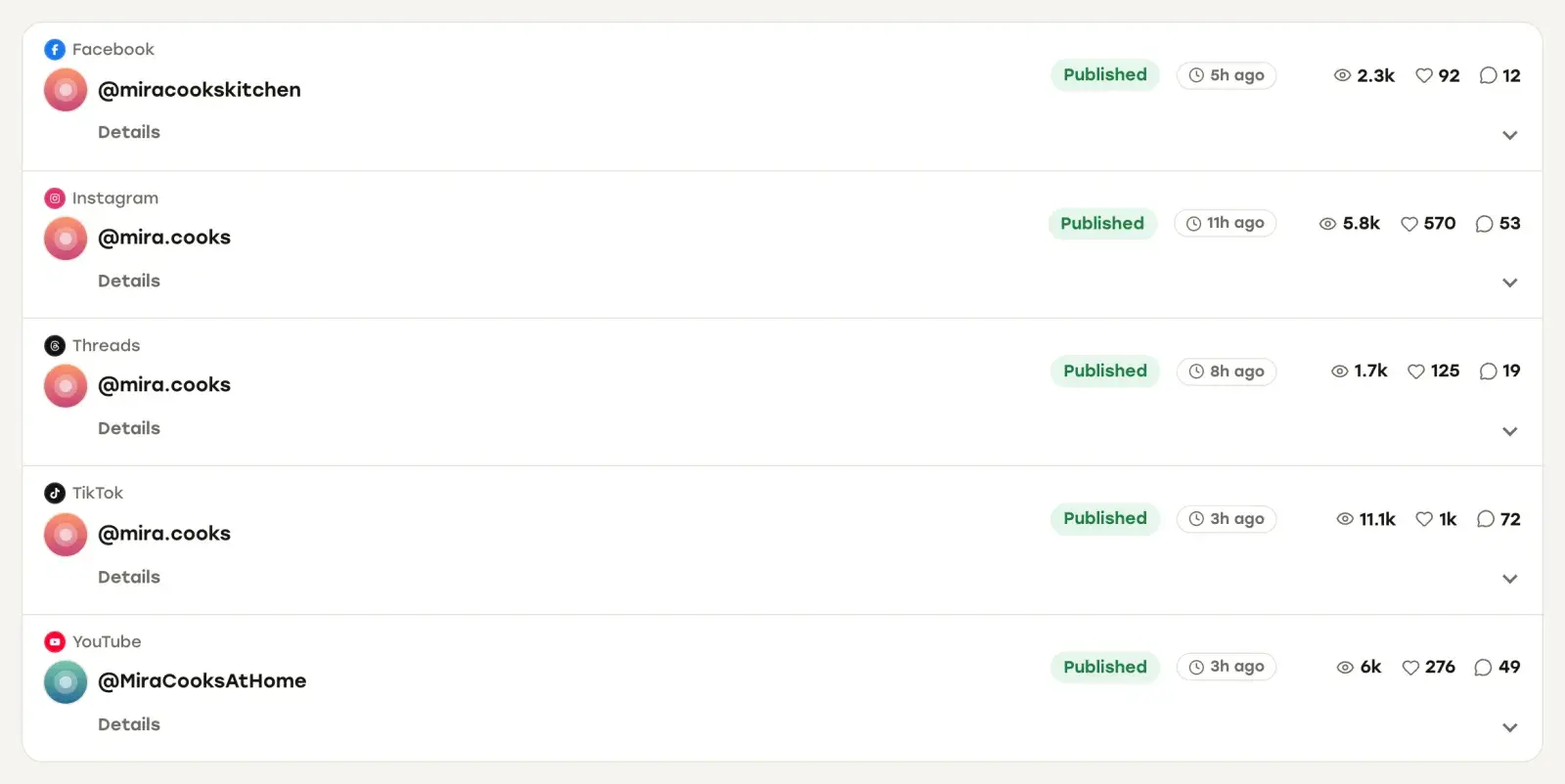
After the post goes out, the post’s detail page shows each destination separately with its own status, views, likes and comments, so you can see at a glance whether Facebook and YouTube both published and how each is doing.
For the other direction, see how to post a Facebook video to YouTube. For a broader plan on getting more out of each video across platforms, start with content repurposing.
If you publish to several platforms every week, Repostly gives you one upload, one calendar for everything scheduled and posted, and one place to check what went out. Plans start at $19 a month for 5 accounts, and you can try Repostly free for 7 days.
Frequently asked questions
How do I post a YouTube video on Facebook?
Open the video on YouTube, click or tap Share under the player, and pick Facebook. If Facebook isn't in the list, choose Copy link and paste it into a new Facebook post. If the video is yours, you can also upload the original file to Facebook, where it is published as a reel.
Can I move my own YouTube videos to Facebook?
Yes. Use your original export if you still have it. If not, YouTube Studio lets you download MP4 copies of videos you uploaded (Content, then the video's menu, then Download), in 720p or 360p. Then upload that file to Facebook as a reel. You can't download other people's videos this way, and you shouldn't re-upload them.
How do I get a sharing link for a video on Facebook?
On a computer, click the date or time shown on the post or video, then copy the address from your browser's address bar. While watching a reel you can also use the share button to post it to your Feed, send it in Messenger or share it to a group.
Keep reading

How to Post Your Facebook Videos to YouTube, Step by Step
Facebook has no button that sends a video to YouTube. Get your own file back out of Facebook, then upload it to YouTube as a Short or a regular video.
How to Post a YouTube Video on Instagram as a Reel
Why a YouTube link in an Instagram caption goes nowhere, how to turn your own video into a Reel that fits, and how to reframe a 16:9 video to 9:16.

How to Schedule Social Media Posts: Native Tools vs. One Scheduler
Where TikTok, Instagram, Facebook, YouTube and Threads let you schedule posts, how far ahead each allows, and when one scheduler for all of them is worth it.
Post once. Show up everywhere.
Start your 7-day free trial and publish your next video to every platform in minutes.Pick a plan and publish your next video to every platform in minutes.
Start your free trialSee plansCancel anytime